
Work with tasks
A task card holds everything about one task. This page walks through each part and how to change many tasks at once.
On this page
In short
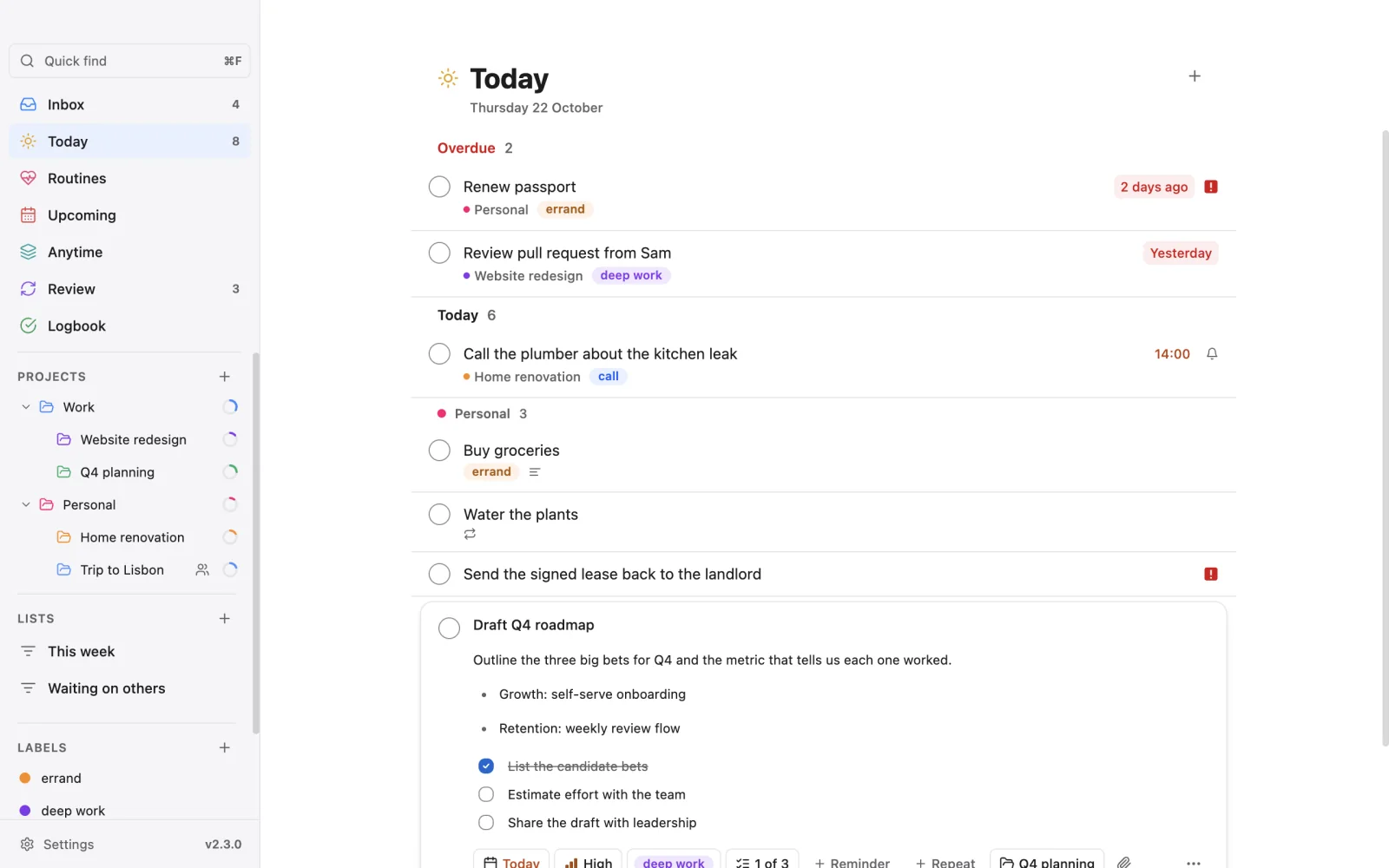
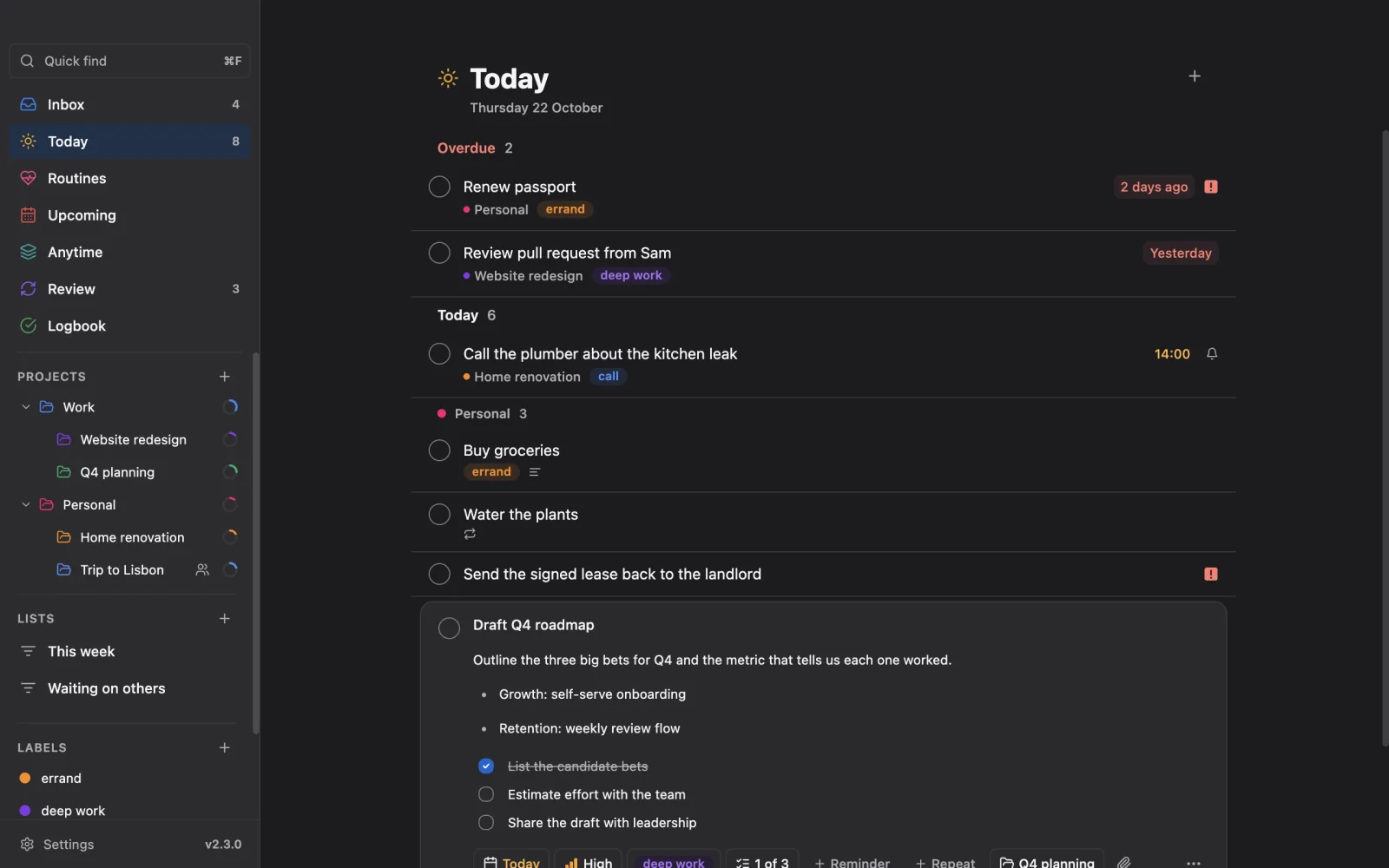
- Open a task to see its card. Set properties show as chips; unset ones are quiet buttons you can click to add.
- The When panel sets every date and time in one place. Type a date in your own words, or pick one.
- Complete with the checkbox. The task stays for a few seconds, and Undo brings it back.
- Notes are rich text. You can paste or type Markdown and it becomes formatting.
- Select several tasks to schedule, move, label, complete or delete them together.
Open and close a task
On the desktop Desktop
Click a task, or press Enter on a focused row. The row grows into a card inside the list. Edits save as you go.
- Esc closes the card and saves.
- Ctrl+Enter saves and closes (Cmd on a Mac).
- Enter in the title moves to the notes.
On a phone Phone
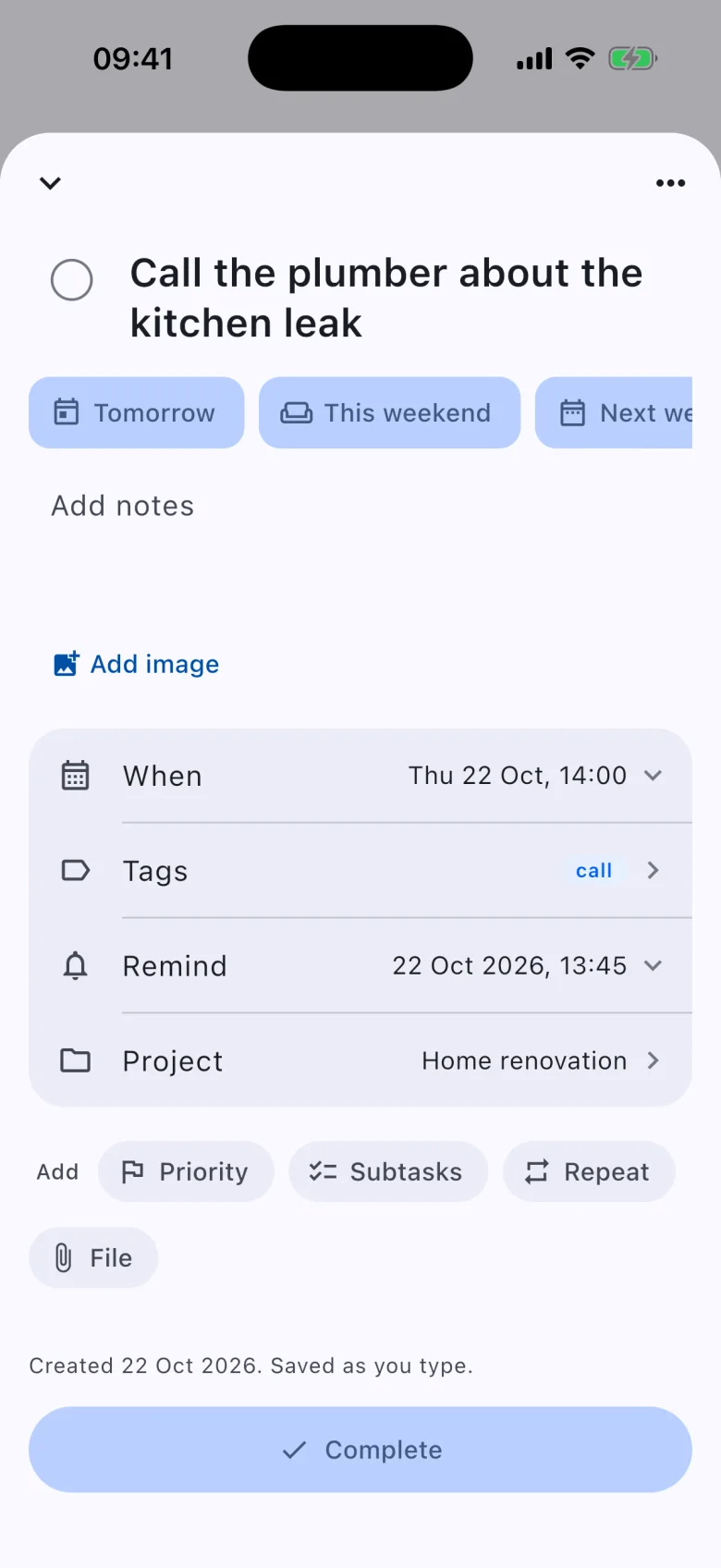
Tap a task. A sheet opens over the list with an editable headline, the notes, and the properties in one card. Properties you have not set sit under Add. Pull the sheet down to close it. It saves as you type.
Dates and the When panel
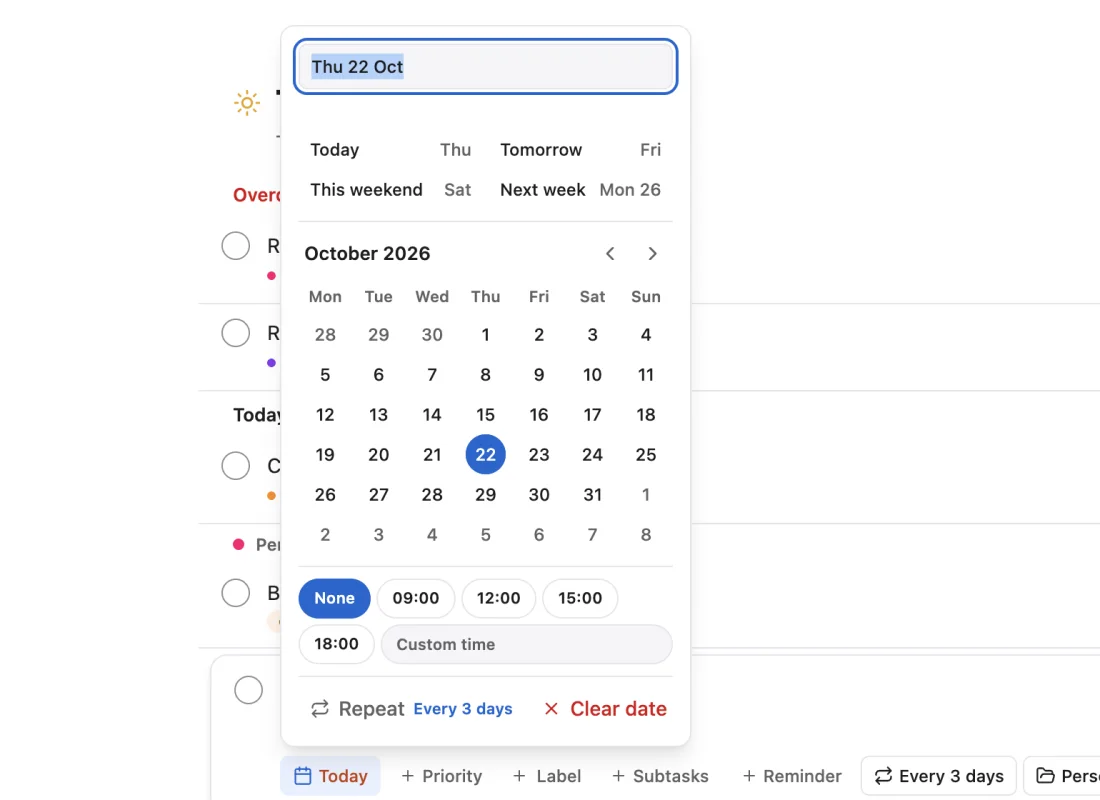
Choose the date chip, or the date button on a phone, to open the When panel. It sets every date and time:
- Type a date in your own words, such as
fridayorin 3 days. - Use the quick choices, which name the coming weekdays.
- Pick from the month calendar. On the desktop, use the arrow keys, Home, End and Page Up or Page Down. The week starts on Monday.
- Choose a time. A custom time applies when you press Enter.
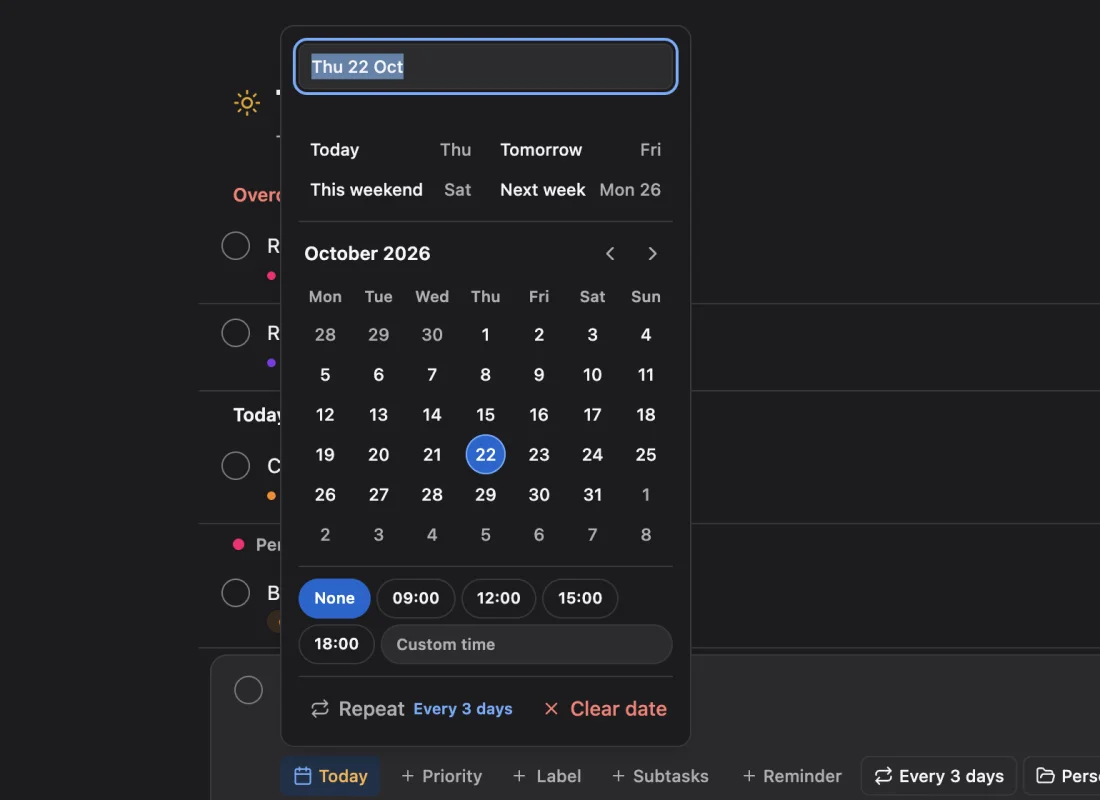
On a phone, the editor also has one-tap Today, Tomorrow, This weekend and Next week buttons, with Undo.
A date without a time counts as the end of that day and shows without a time. A date with a time keeps it. On the desktop you can press Ctrl+T to set the due date to today.
Dates read the same everywhere: Today, Tomorrow, weekdays, then dates in your system's format. Chips say the word and the date for nearby days, such as "Today, 7 Oct".
If a task has a time block, which is a start and end time on one day, it shows as a time range. See Plan your day.
Reminders
Choose the bell to add a reminder. A reminder can be an exact time, or relative to a date, such as "1 hour before" the due date. On the desktop you can count from the due, start or end date.
Default reminder
You can have Vicu add a reminder to every new task that has a due date and no reminder of its own. It applies to the composer, Quick Entry, pasted lines and voice. It never changes existing tasks.
Set it in Settings, Notifications, Default reminder on the desktop, or on the Notifications tab on a phone. You choose off, at the due time, or a time before. With a time block, it goes by the block's start.
Place reminders
A phone can remind you when you arrive at or leave a place. Phone
- Save places in Settings, Notifications, Places on the phone, or with Save as place. Only the place's name syncs. Where it is stays on that phone.
- On a task, choose At a location... in the reminder menu, then pick a place, a searched address or where you are now, and a radius of 100, 200 or 500 meters.
- Vicu needs location access set to Always, and explains this first.
On the desktop you can read your places in Settings, Notifications and set a reminder at one with At a place. Only phones fire place reminders. Typing when I get home in quick add sets one for a saved place.
When a reminder fires
On a phone, the notification has Mark Complete and Snooze 15 min. On the desktop, a notification brings Vicu forward when you click it. Reminders for tasks done or deleted on another device do not ring.
Repeats
Choose the repeat chip, or type every friday, every 3 days or daily in quick add. Any interval works. Completing a repeating task moves its dates to the next time. Undo puts the dates back.
Priority
Choose the priority chip. Priority shows as marks: one, two or three bars for low, medium and high, and a filled square with an exclamation mark for urgent. The name shows on hover and to screen readers.
On the desktop, Settings, General, What does urgent mean? decides the top action in the right-click menu: Schedule for Today, or Mark Important.
Labels
Choose the label chip to add labels. On the phone, you can create a label right from the picker. A drag onto a label in the sidebar also applies it on the desktop. See Projects and labels.
Notes
Notes are rich text. You can use links, checklists, bold and italic, lists, and pasted images. Notes are saved in Vikunja's own format, so other Vikunja apps show them too.
Markdown
Markdown you paste becomes formatting, and typing it formats as you go: headings, quotes, lists, [ ] checklists, dividers, bold, italic, strikethrough, code and [text](url) links.
- Press Ctrl+Shift+V to paste without conversion. Desktop
- On iPhone, pasted Markdown stays plain text for now. Typing it works. iPhone and iPad
Long notes
A long note folds at about half the visible height, with Show all. On the desktop, Alt+Up and Alt+Down move a list line up or down. On a phone, the toolbar has the same, and Copy notes is in the menu.
Images
Paste an image into the notes on the desktop and on Android. On iPhone, use Add image. Click or tap a picture in the notes, or an image attachment, to open the viewer:
- Fit the image or see it at its own size.
- Press Left and Right to go through the task's images.
- Open in default app and Save are there too.
HEIC and TIFF images open in your default app instead.
Subtasks and checklists
Add subtasks in the task card. Add several in a row. Click a subtask's title to rename it. Right-click it for Rename, Open subtask and Delete subtask. Open subtask opens it as its own card. Deleting asks whether to delete nested subtasks too, when you have confirmation on.
On the desktop, Settings, General, Subtasks in task lists chooses whether subtasks show Inside task or are Expandable in lists.
To change the order of subtasks, drag the grip that appears on hover, or use Move up and Move down in the row's menu. On a phone, press and hold. The order is yours and syncs. Other Vikunja apps keep the server's order.
A checklist in the phone's quick add becomes subtasks.
Attachments
Add files from the attachment button. Any file type works. Each file offers Open and Save, and the phone adds Share. Deleting a file asks first.
Files you add while offline wait in the queue and upload when the server is back. The attachment list shows what is waiting, with Retry and Remove. Images land at the end of the notes.
Comments and assignees
Every task has a Comments button. In shared projects you can also assign people. See Work with others.
Complete, undo and delete
Complete
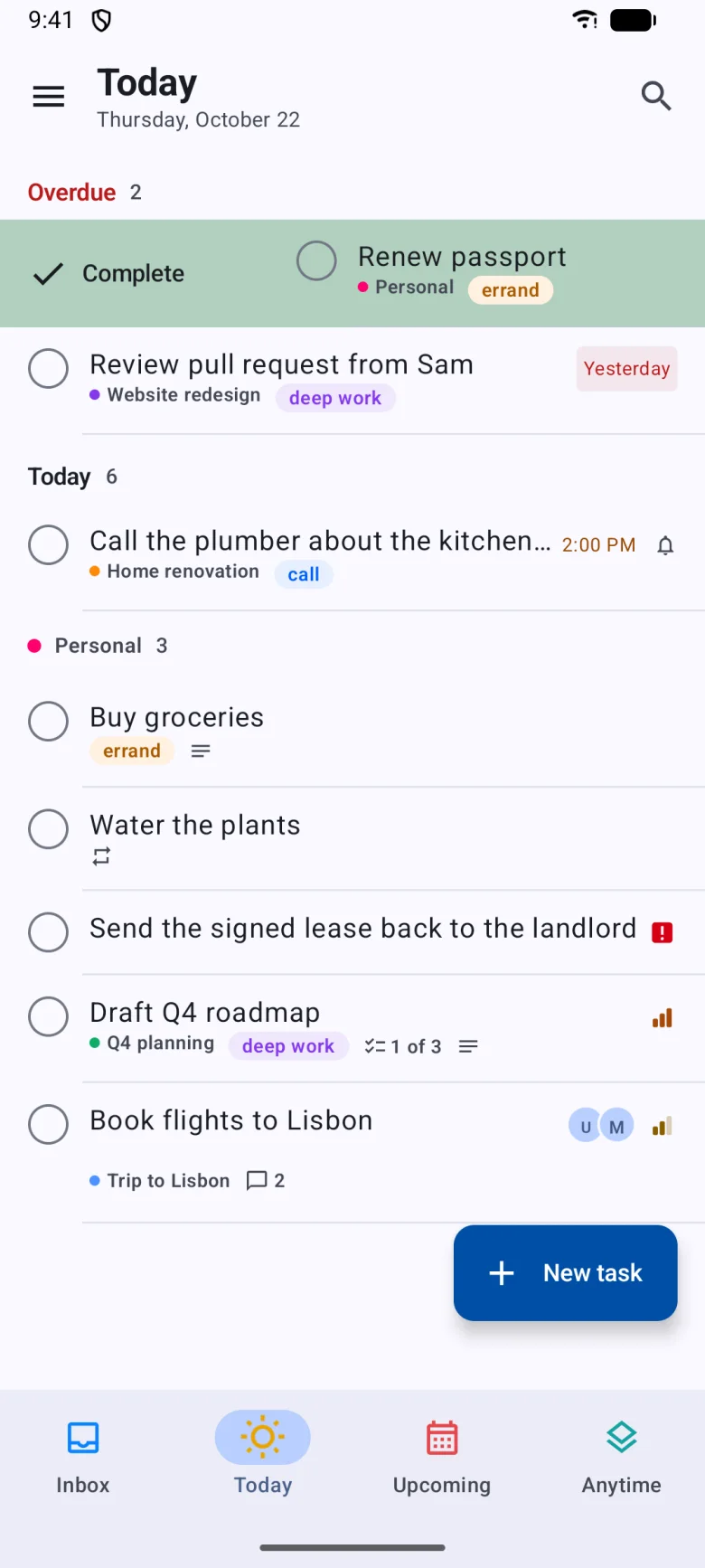
Tick the checkbox, or press Space on a focused row. The task stays in its list, shown as done, for 5 seconds, and longer while your pointer, finger or keyboard focus is on it. Then it collapses. Collapsed tasks share one Completed or "3 completed" message with Undo, which stays for 6 seconds. Leaving the list collapses everything at once.
The desktop can play a sound on completion. Choose the file, reset it or press Play in Settings, General.
On the desktop, Ctrl+K completes the selected task. With a card open, it completes and closes.
Delete
Choose Delete in the task's menu, or select it and press Delete. With Confirm before deleting on in Settings, General, Vicu asks first.
Duplicate and templates
Duplicate and Save as template are in the task's menu. See Add tasks.
Select several tasks
On the desktop Desktop
Click with Shift or Ctrl to select a range or add single tasks. Ctrl+A selects all. A bar appears to schedule, complete, move, label or delete the whole selection. Assign shows when every task is in a shared project you may edit.
Right-click for the same actions with their shortcut hints.
On a phone Phone
Select tasks, and the selection's menu has the actions for all of them: Copy titles, Duplicate, and Assign... when every task is in a shared project.
Move, drag and reorder
On the desktop, drag a task to reorder it, onto a project in the sidebar to move it, onto a label to apply it, or onto a section. On a phone, press and hold a task and drag.
You can also move a task with the keyboard. See Projects and labels.
Row density
Settings, General, Appearance, Task rows has two choices:
- Compact shows one title line per row. This is the default.
- Comfortable shows up to three title lines and a line of notes.
Swipe actions Phone
Swipe right to complete a task and left to open the When panel. In Settings, Gestures you can choose each side from Complete, Choose when, Due today, Due tomorrow, Mark urgent, Move to project, Delete and Nothing. Delete always asks first.
Print Desktop
Press Ctrl+P, or use File, Print, to print the list or task you are looking at.