
Vicu on the desktop
The desktop app is the full Vicu, plus a few things that only a computer can do: a task box you can call up over any app, a small list you can check off without switching windows, and a command palette.
On this page
In short
- Quick Entry and Quick View are off until you turn them on in Settings, Quick Entry / View. Each has its own shortcut that works in any app.
- The command palette (Desktop) opens with Ctrl+Shift+P (Cmd on a Mac). It jumps to any list, project, label or task and runs actions.
- Quick find is the search box at the top of the sidebar. Ctrl+F puts the cursor there.
- The tray icon appears while Quick Entry or Quick View is on. Closing the window then hides Vicu instead of quitting it.
- F5 refreshes the page you are on from your server.
- Browser and Obsidian links attach the page or note you were looking at to a new task.
Quick Entry
Desktop
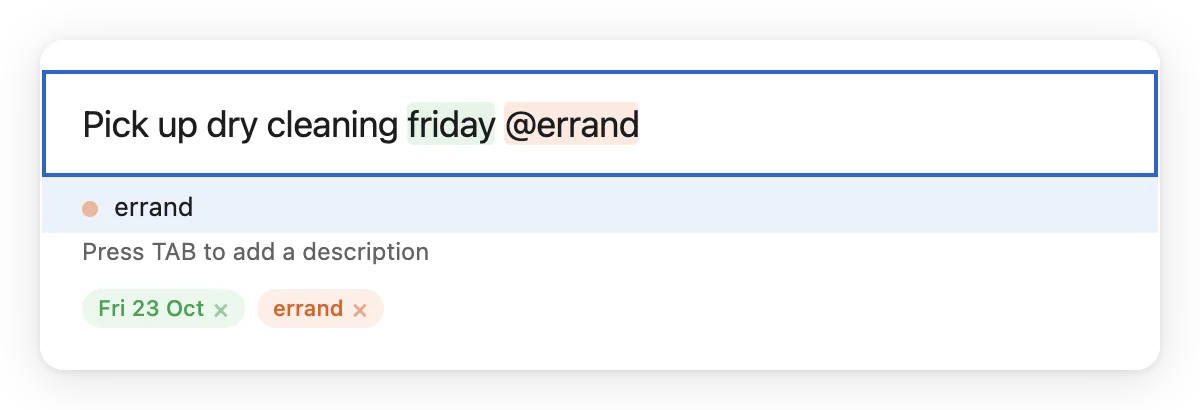
Quick Entry is a small box that opens over whatever you are doing. Type a task, press Enter, and it is gone. It uses quick add, so dates, labels, projects and priority typed in the title are read as you type.
Turn it on
- Open Settings, Quick Entry / View.
- Tick Enable Quick Entry.
- Check the hotkey. The default is Alt+Shift+V, and Cmd+Shift+Space on a Mac. Click it to record another.
- Pick a Default Project. New tasks land there.
Use it
- Type the task and press Enter. Esc closes the box without saving.
- Press Tab to add a description under the title.
- Hold the project cycle modifier (Ctrl by default) and press Left or Right to switch to another project. The box says "saving to" with the project's name. Add the projects to cycle through under Secondary Projects, and pick the modifier under Project Cycle Modifier.
- Press Ctrl+L (Cmd+L on a Mac) to link the page or note you were looking at. See Browser and Obsidian links.
- It works offline. The task waits in the offline queue and goes to the server when you are back.
Quick View
Desktop
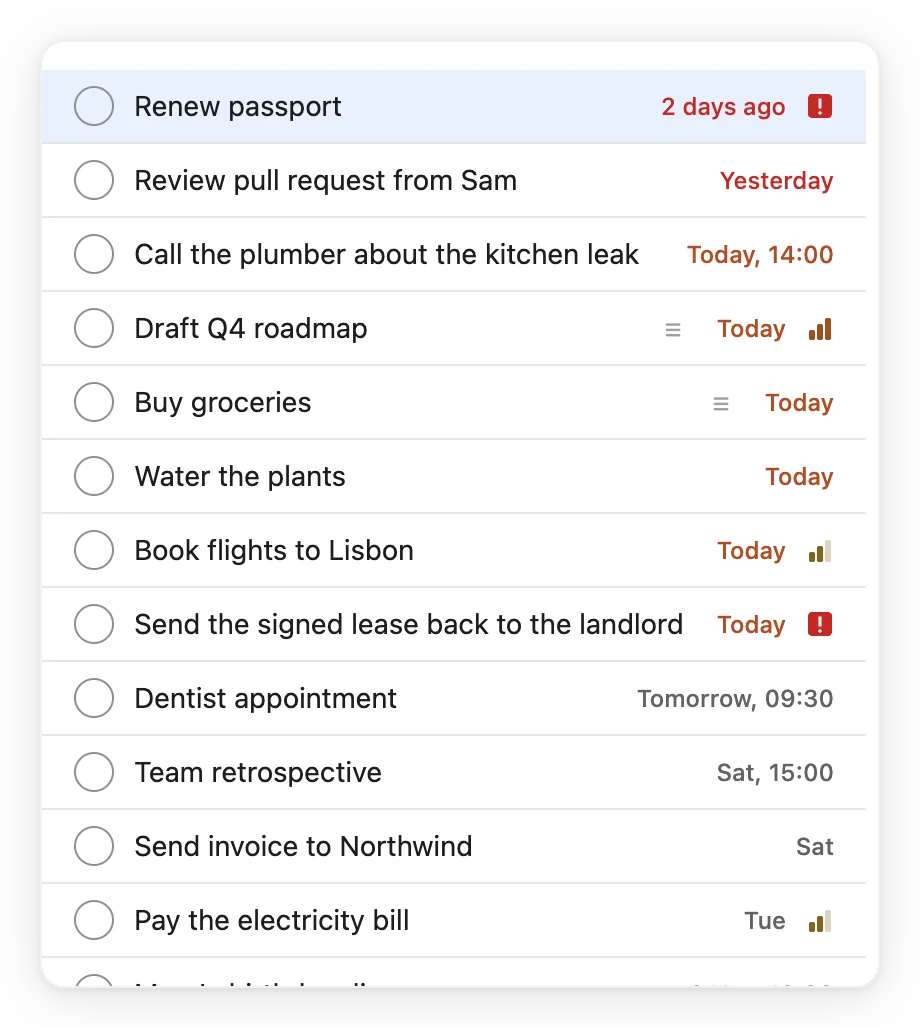
Quick View is a short list in a floating window. Use it to check what is next and tick things off without leaving the app you are in.
- Open Settings, Quick Entry / View and tick Enable Quick View.
- Under List, choose what it shows: All projects, Today, Upcoming, Anytime, one project, or one of your custom lists. You can also tick Include tasks due today from all projects.
- Press the hotkey: Alt+Shift+B by default, Cmd+Shift+B on a Mac.
Inside the window:
| Key | What it does |
|---|---|
| Up and Down | Move through the tasks |
| Enter | Complete the selected task. Press it again to undo. |
| Tab | Show or hide the task's description |
| Shift+Enter | Edit the title and description |
| ! | Set the due date to today, or remove it if there is one |
| Esc | Close the window |
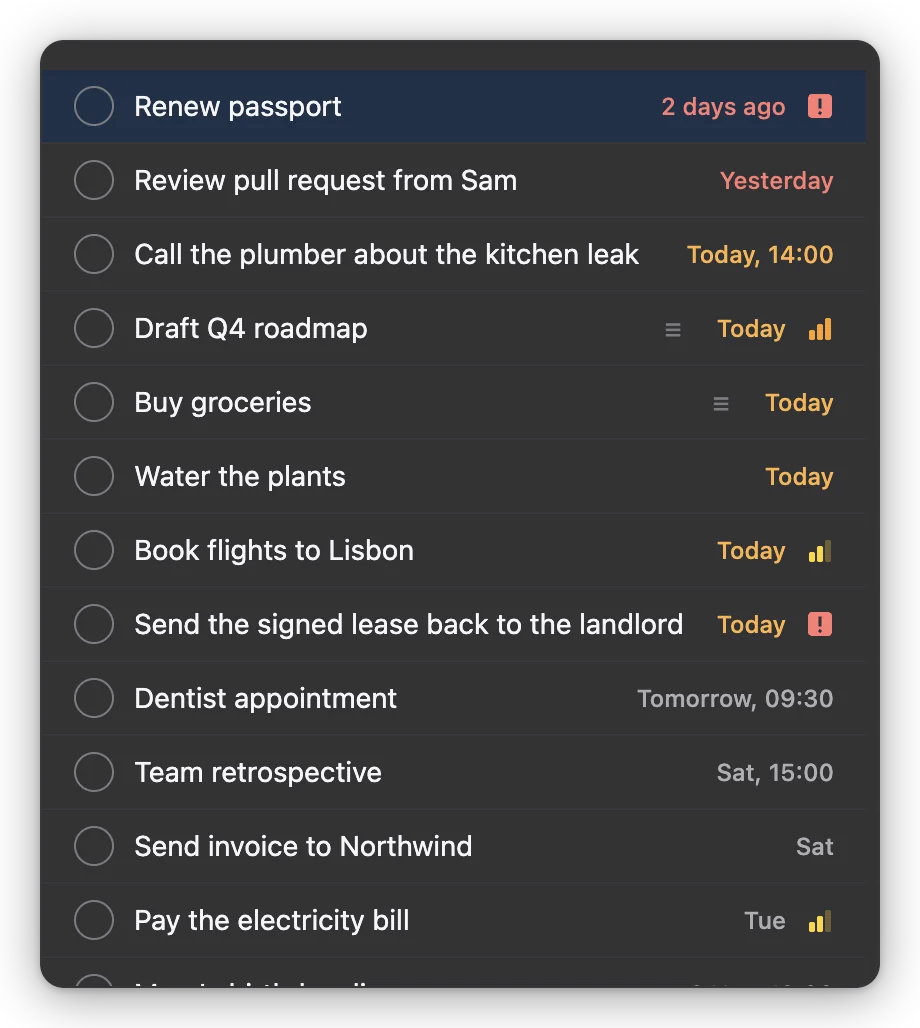
Quick View follows your theme, picks up changes you make in the main window, and applies the conditions of a custom list.
Global shortcuts and Wayland
Desktop
The Quick Entry and Quick View shortcuts work in any app. If another program already uses a key combination, Settings says it could not register the shortcut. Record a different one.
The tray, startup and the window
- Tray icon. It exists while Quick Entry or Quick View is on. Click it to show Vicu, or right-click for Show Vicu, Quick Entry, Quick View and Quit. On macOS the menu opens with a single click.
- Closing the window. With a tray icon (or on a Mac), the close button hides Vicu and keeps it running so the shortcuts stay ready. Choose Quit from the tray, or File, Quit on Windows and Linux, to end it.
- Launch on startup. Settings, General, Preferences, Launch on startup starts Vicu when you sign in. It is advised if you use Quick Entry or Quick View.
- Start hidden. With launch on startup ticked, Start hidden opens Vicu without a window. It needs the tray icon (turned on through Quick Entry or Quick View) or a Mac, so there is a way back to the window.
- Linux. The AppImage writes an autostart entry. The option is hidden when Vicu cannot tell which file to start, for example in a development build. On GNOME the tray icon needs the AppIndicator extension.
- Updates. Vicu checks for a new version every 12 hours and tells you.
How the window looks on each system
| System | Window |
|---|---|
| Windows 11 | Native minimize, maximize and close buttons with Snap Layouts, and a translucent Mica sidebar (version 22H2 and later) |
| Windows 10 | The same native buttons and an opaque sidebar |
| macOS | The usual traffic-light buttons and a translucent sidebar |
| Linux | Vicu draws its own window buttons |
The command palette
Desktop
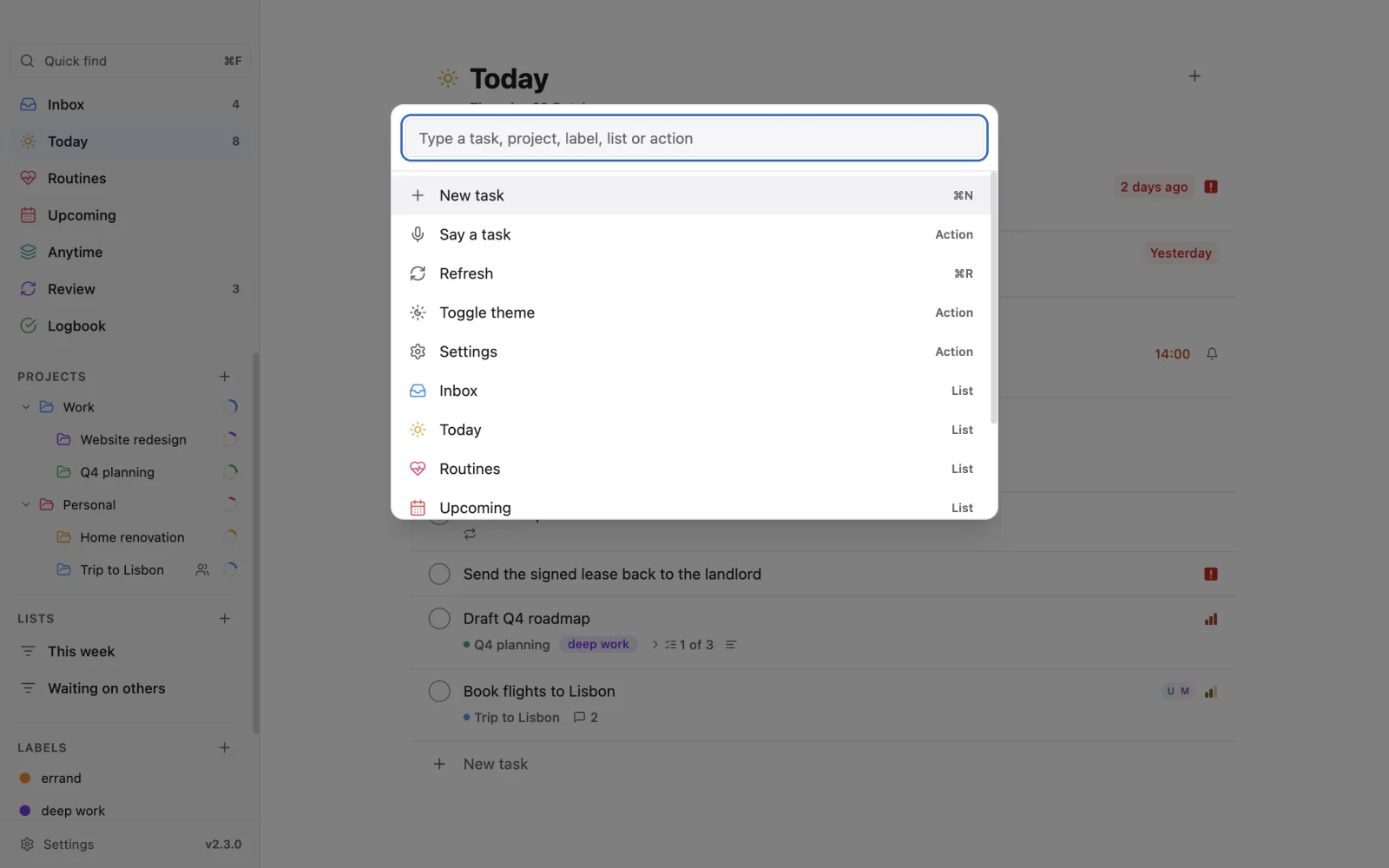
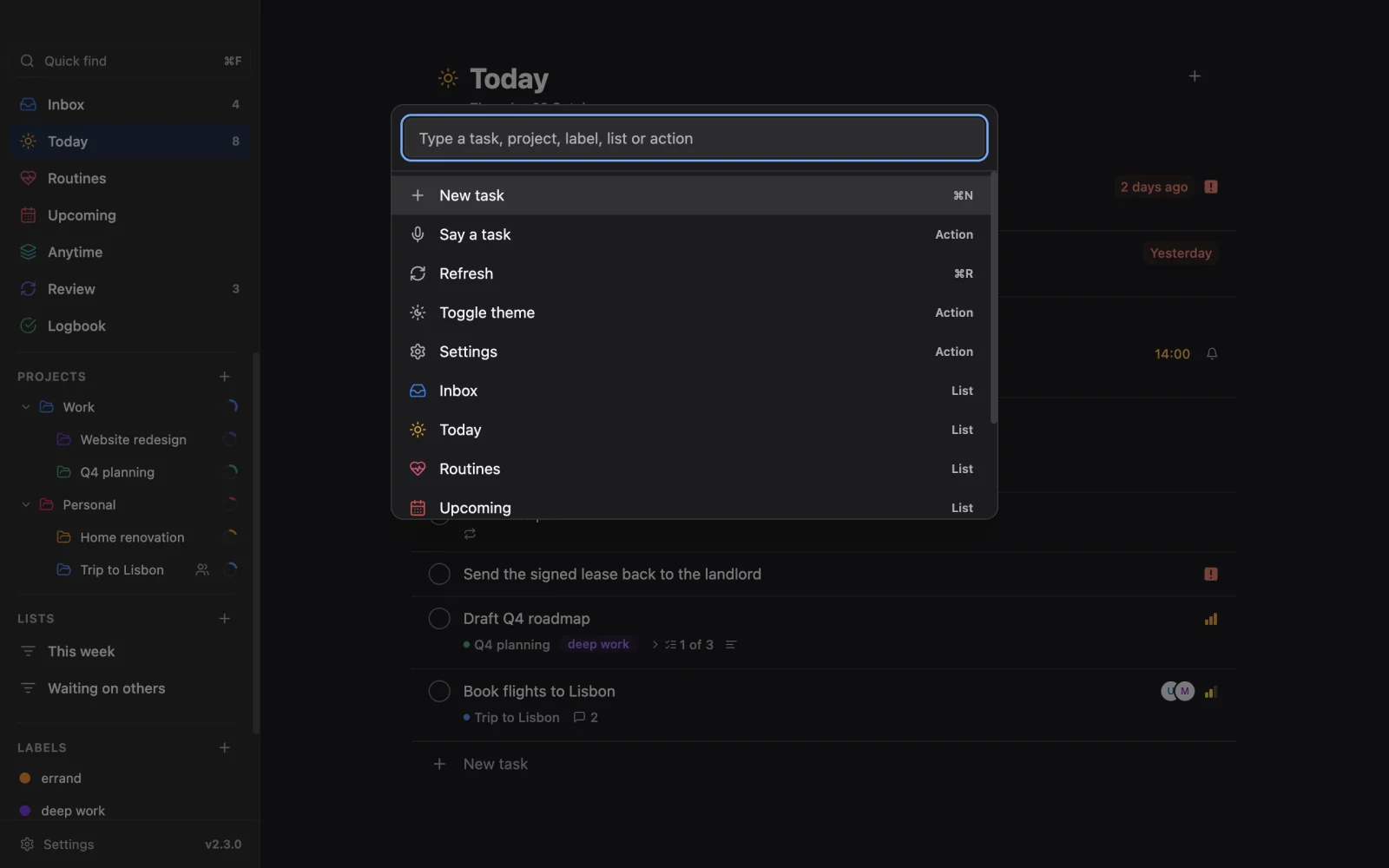
Press Ctrl+Shift+P (Cmd+Shift+P on a Mac) and type. One field finds tasks, projects, labels and lists, and runs actions. Use Up and Down to choose, Enter to run, Esc to close.
Actions include New task, Say a task, Refresh, Toggle theme and Settings. When the matching feature is on, you also find New event, Dictate tasks, Brain dump, Ask Vicu, Make tasks from text, and the guided sessions Sort the Inbox, Sort out overdue, Waiting a long time, Start review and Weekly review.
A smart list you hid from the sidebar still opens from the palette.
Quick find
Desktop
The Quick find box sits at the top of the sidebar. Press Ctrl+F (Cmd+F) to jump to it. Tasks that match show as you type. The last row, "Search all tasks for ...", opens the full Search page, which also finds notes and finished tasks and has filters for date, status, labels and priority.
Refresh
Desktop
F5 or Ctrl+R (Cmd+R) reads the page you are on again from your server. It also refreshes projects, labels, sharing, custom lists and synced settings, and it sends waiting changes first. View, Reload window (Ctrl+Shift+R) reloads the whole window instead.
Right-click text menu
Desktop
Right-click in any text field for spelling suggestions, Cut, Copy, Paste and Select all. On selected text that you cannot edit, you get Copy. A task row has its own right-click menu.
Browser and Obsidian links
Desktop
Both work from Quick Entry. In Settings, Quick Entry / View, set Page Linking (browser) or Note Linking (Obsidian) to Off, Ask or Always auto-link. With Ask, press Ctrl+L in Quick Entry to attach the link.
- Browser. Vicu reads the address of the active browser tab. A bundled extension for Chrome, Edge, Brave, Vivaldi, Opera or Firefox makes it instant. Without it, Vicu reads the address bar, which takes a moment. Under Browser Integration, paste a Chrome Extension ID if you installed it, and use Re-register Bridge if the link stops working. On a Mac the first use asks you to let Vicu control the browser. On Linux only the extension works, because the desktop does not let apps look at other windows.
- Obsidian. Vicu links the note you have open. It needs two Obsidian plugins, Local REST API and Advanced URI, and you enter the API Key, Vault Name and Port under Obsidian Integration. Use Test Connection to check. Obsidian links are not available on Linux, and the settings are hidden there.
Both sections are greyed out until Quick Entry is on.
Links into Vicu
Other apps and scripts can open Vicu with a vicu:// link. See Vicu Pro for the list of links.