
How Vicu is organized
Vicu is organized around when you will do something, not where it is filed. This page shows the pieces and how they fit.
On this page
In short
- New tasks land in the Inbox. You sort them later, or not at all.
- Smart lists answer "when". Today, Upcoming, Anytime and Logbook are built from your tasks' dates. You do not fill them by hand.
- Projects answer "where". Projects can hold subprojects and sections, and top-level projects can be grouped under categories.
- Labels cut across projects. A label such as
errandcan be on tasks in any project. - Custom lists are your own views. A list is a saved set of conditions, and it is the same on every device.
- Everything is stored on your Vikunja server. Vicu is a window onto it.
The idea
A task starts in the Inbox. You give it a day, and it shows up in Today when that day comes. When you finish it, it goes to the Logbook. You do not have to file it in a project first, and Vicu has no boards or Gantt charts.
Projects, labels and custom lists exist for the times when you want to look at your work by topic or by a rule of your own.
The pieces
| Piece | What it is | Where you find it |
|---|---|---|
| Inbox | The project where new tasks land. You choose it once, and it syncs. | First in the sidebar or drawer |
| Today | Everything due before tomorrow starts: overdue and due today | Smart list |
| Upcoming | Everything due from tomorrow on, grouped by day | Smart list |
| Anytime | Every open task outside the Inbox, with or without a date | Smart list |
| Logbook | Tasks you have completed, by the day you finished them | Smart list |
| Projects | Groups of tasks, which can hold subprojects and sections | Projects in the sidebar or drawer |
| Categories | Named headers that group your top-level projects | Between projects in the sidebar |
| Labels | Colored tags you put on tasks | Tags in the sidebar; Labels in the phone drawer |
| Custom lists | Your own lists made from conditions | Under the smart lists |
Read Smart lists for the five lists, Projects and labels for the organization tools, and Custom lists for lists of your own.
Projects, subprojects and sections
A project can hold other projects. A top-level project acts like an area, with the projects below it. Inside a project, sections split a long list into collapsible groups with headers and counts.
The Inbox does not appear among the projects, because it has its own place at the top.
Categories
If you have many top-level projects, you can group them under named headers called categories. They are optional. Without a category, the sidebar is a plain list of projects.
Labels
A label is a colored tag. Each label has its own page that shows every task with that label, across all projects. You can put several labels on one task.
Custom lists
A custom list is a saved view: for example "high priority tasks due this week in Work". It is stored on your server, so every device shows the same list. See Custom lists.
The task card
Everything about one task lives in its card on the desktop, or in the task editor on a phone. It holds the title, notes, dates, reminders, repeat, priority, labels, subtasks, checklists and files. Properties you have set show as chips. Properties you have not set show as quiet buttons you can click to add them. See Work with tasks.
A tour of the main window Desktop
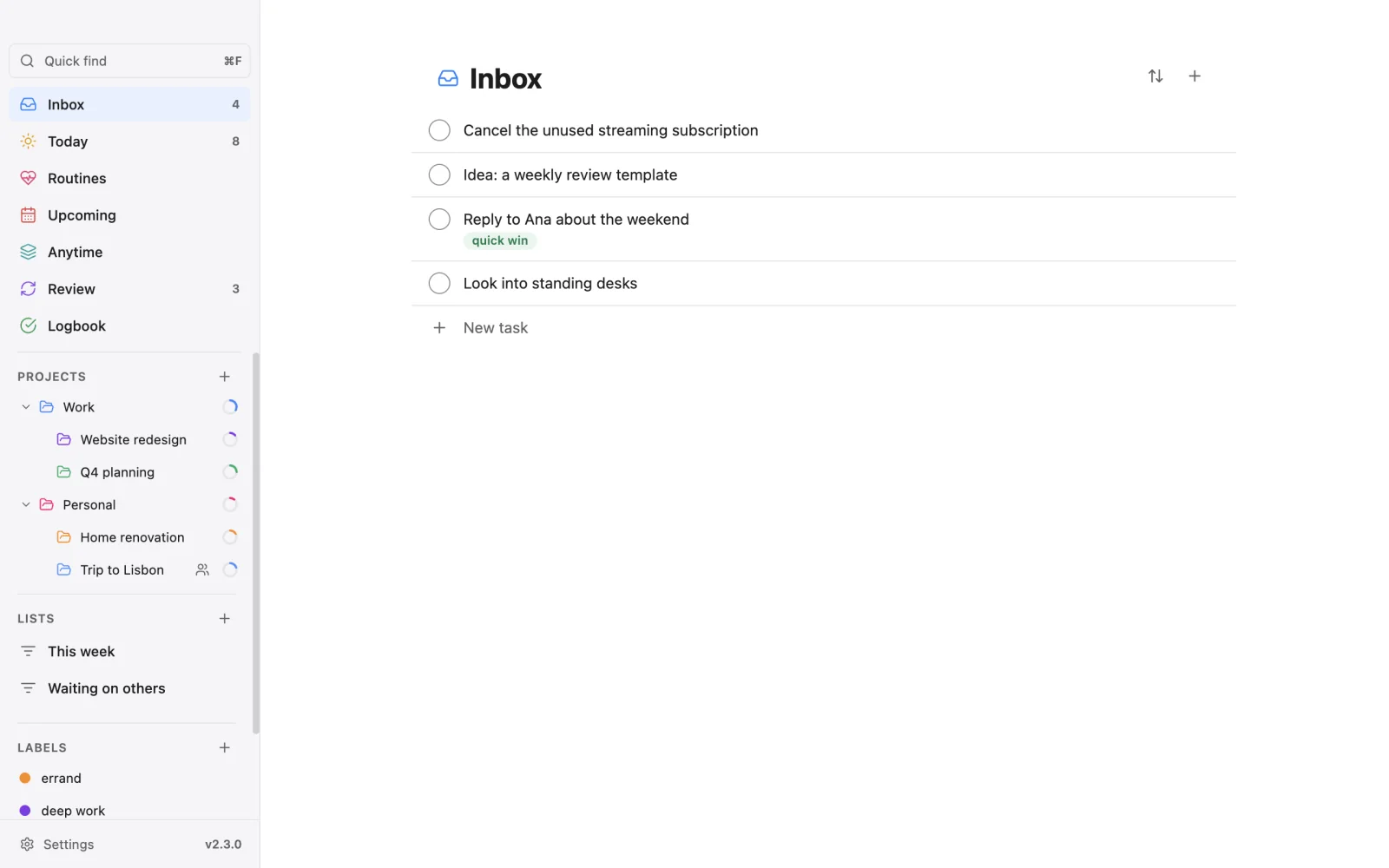
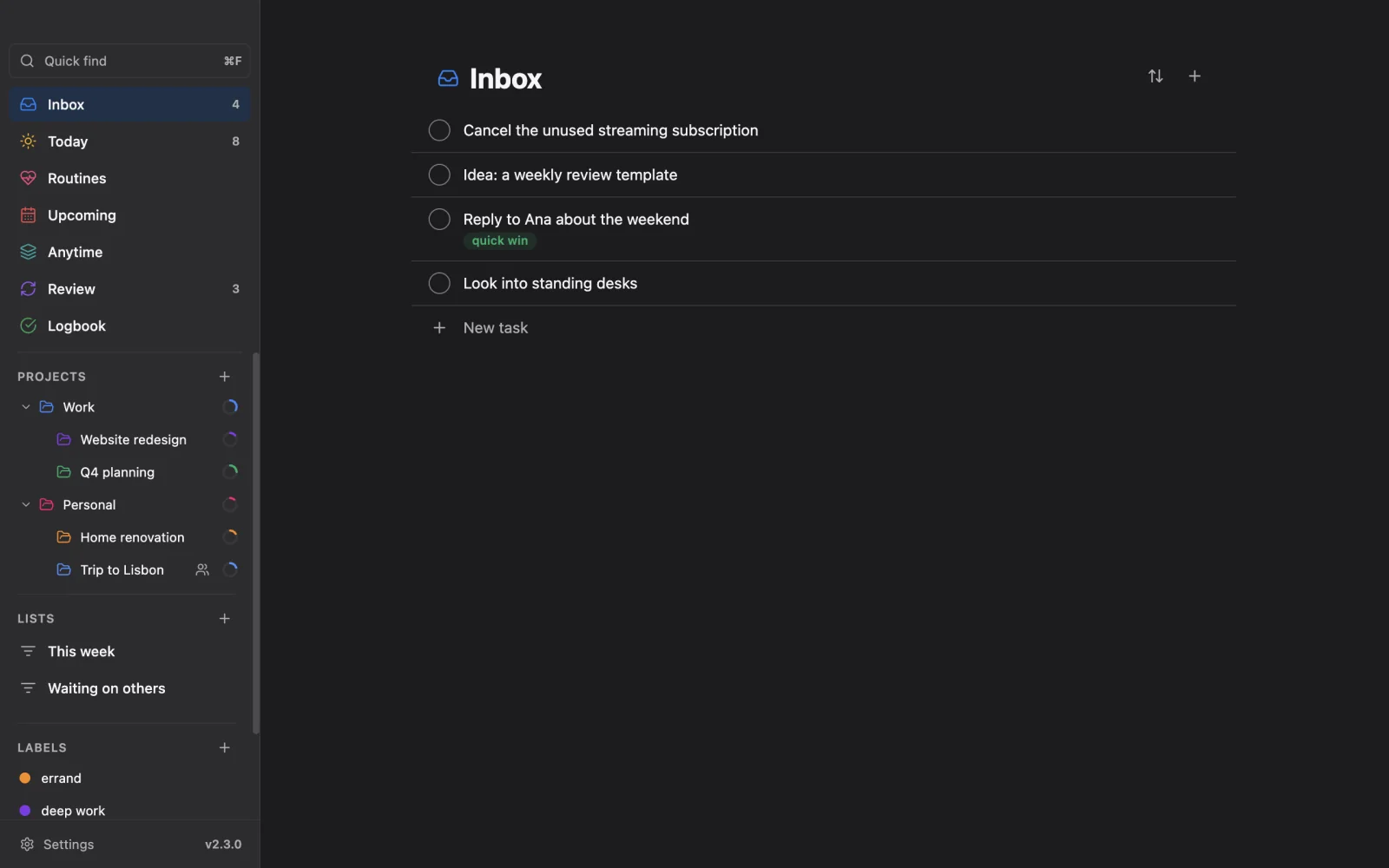
The desktop window has a sidebar on the left and the content on the right.
- Top of the sidebar: the search box, called Quick find, with the Ask button next to it when the assistant is set up.
- Smart lists: Inbox, Today, Upcoming, Anytime and Logbook. Routines, Review and Plan appear here when you turn them on.
- Custom lists, and a + button to make one.
- Projects, in a tree, with progress rings. Subprojects fold under their parent.
- Tags: your labels.
- The sync button, which opens a panel with changes that are waiting to reach the server.
Click a task to open its card inside the list. Press Escape to close it. Right-click a task for its menu. Press Ctrl+Shift+P (Cmd on a Mac) to open the command palette, where you can jump to any list or run any command.
A tour of the phone Phone
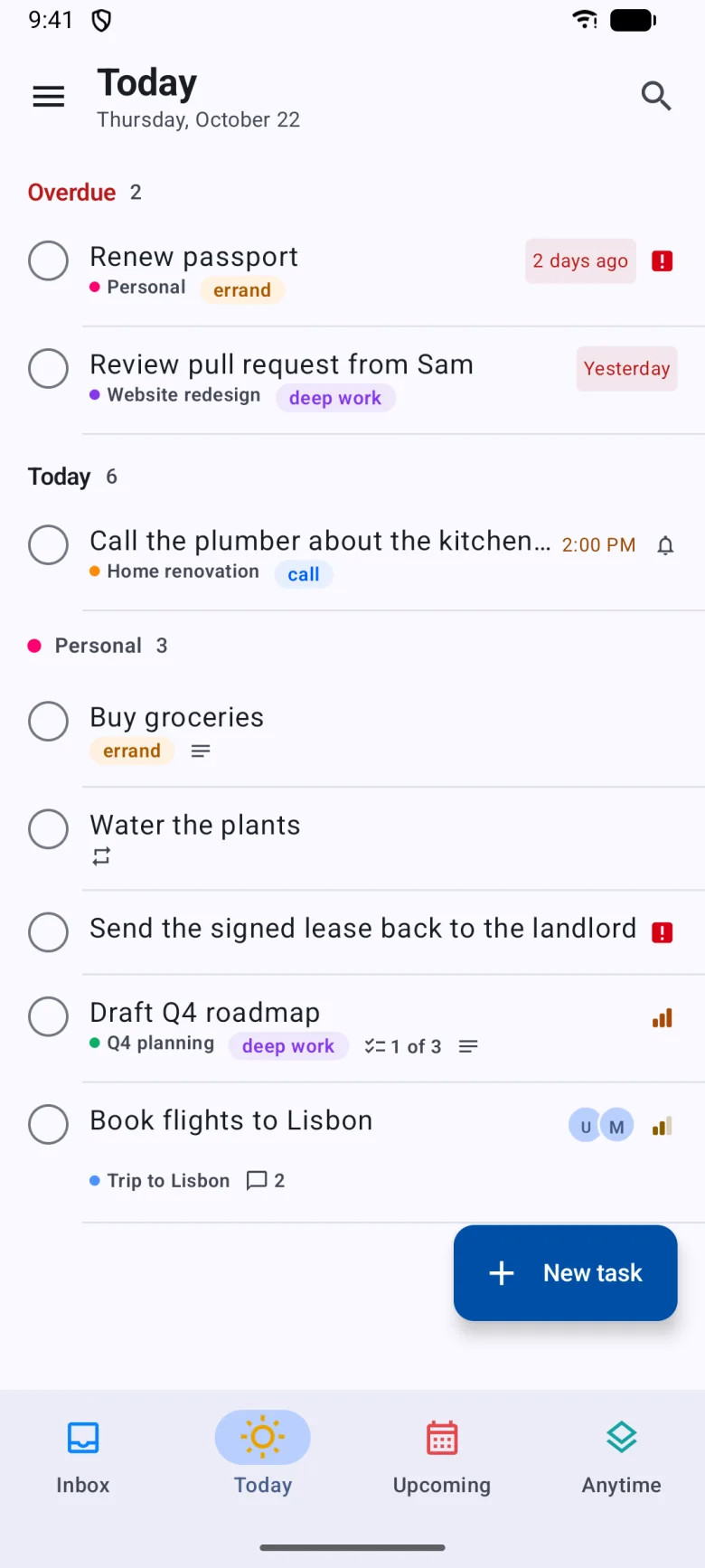
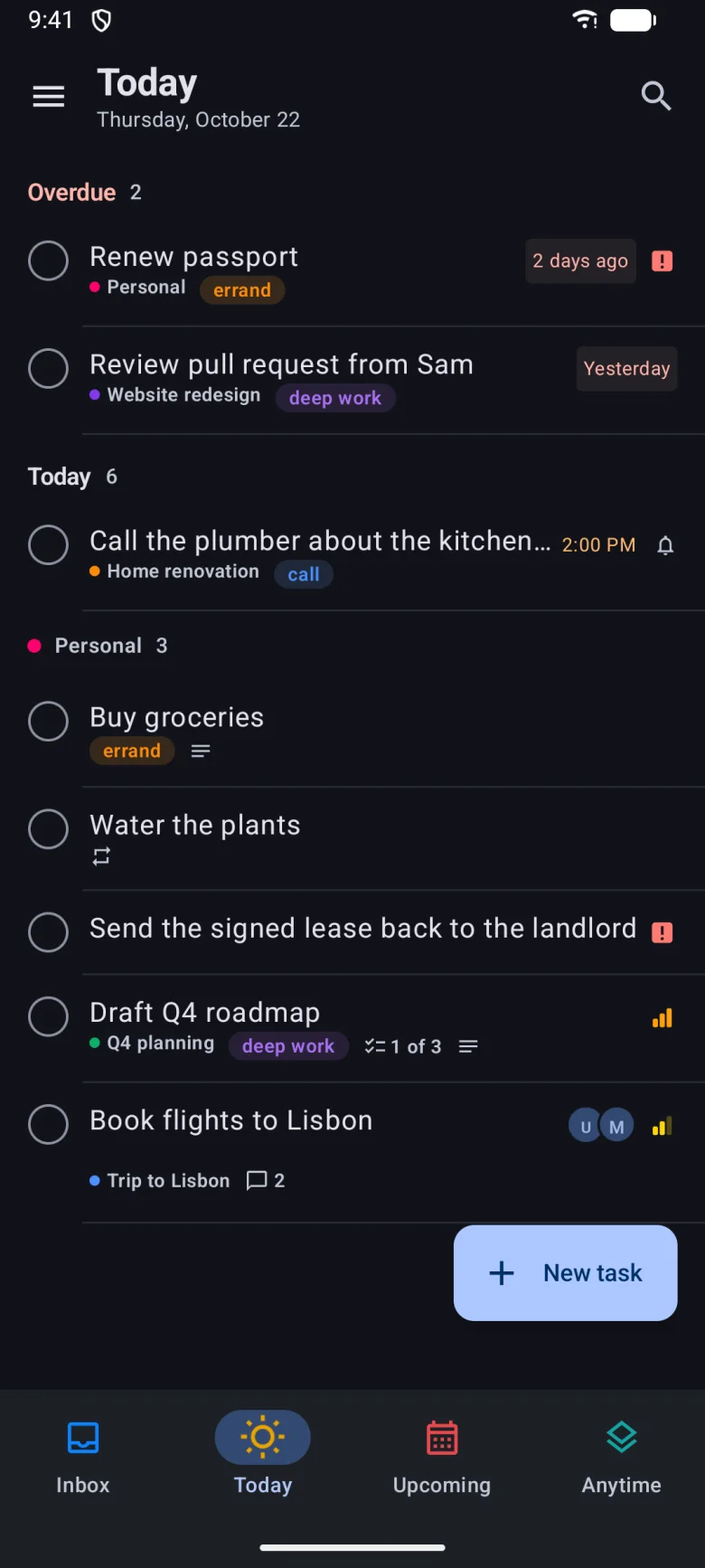
The phone has the same pieces in a different layout.
- The bottom bar holds the Inbox first, then three slots you choose: smart lists, projects or custom lists. Android iPhone and iPad
- The drawer opens from the menu button and lists everything: smart lists, custom lists, projects and labels. Smart lists you hide in settings disappear from it.
- The + button adds a task. Hold it to say a task.
- A task opens as a sheet over the list. Pull it down to close it.
- Swipe a row to complete it or to choose a day. You can change what each swipe does in Settings, Gestures.
- Search is at the top of every list, with the Ask button next to it when the assistant is set up.
What syncs and what stays on one device
Your tasks, projects, labels and comments live on your server. Vicu also saves some of its own data there, in a way other Vikunja apps do not show you: custom lists, the Inbox choice, project categories and order, templates and routines. These follow you to every device.
Choices about how the app looks stay on the device: the theme, the clock, hotkeys and which smart lists show. Sync and offline and Settings have the full lists.