
Custom lists
A custom list is a saved view of your tasks, such as "everything high priority due this week". You set the conditions once, and Vicu keeps the list current.
On this page
In short
- A custom list is a set of conditions, not a folder. Tasks appear in it when they match.
- Conditions cover projects, labels, priority, due dates, completion, changes, and shared work.
- A rule lets you write any condition in Vikunja's filter syntax.
- Lists sync. They live on your server, so every device shows the same ones.
- Quick View, phone widgets and the phone's bottom bar can show a custom list.
- Vikunja's saved filters are imported as custom lists.
Make a list
On the desktop Desktop
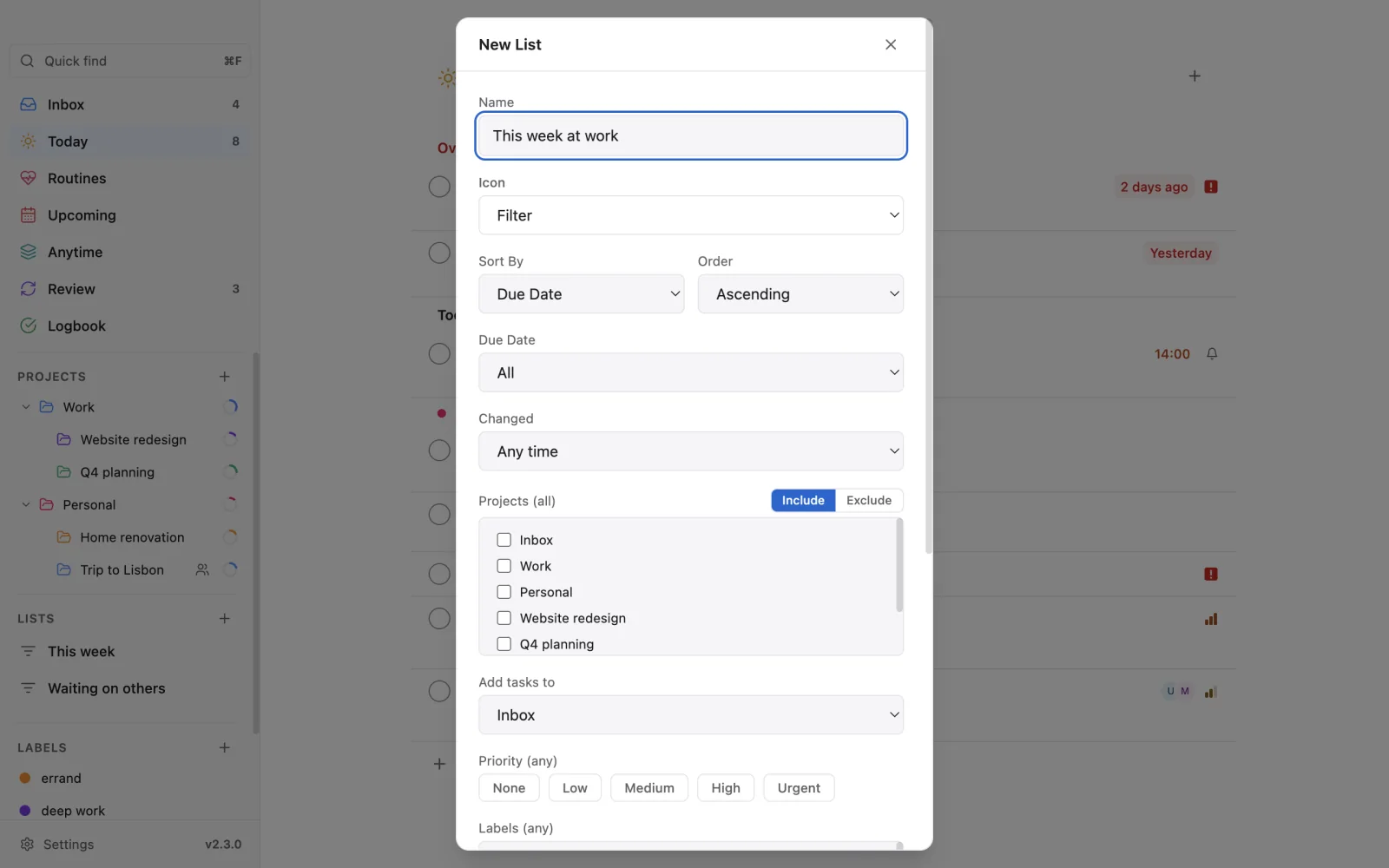
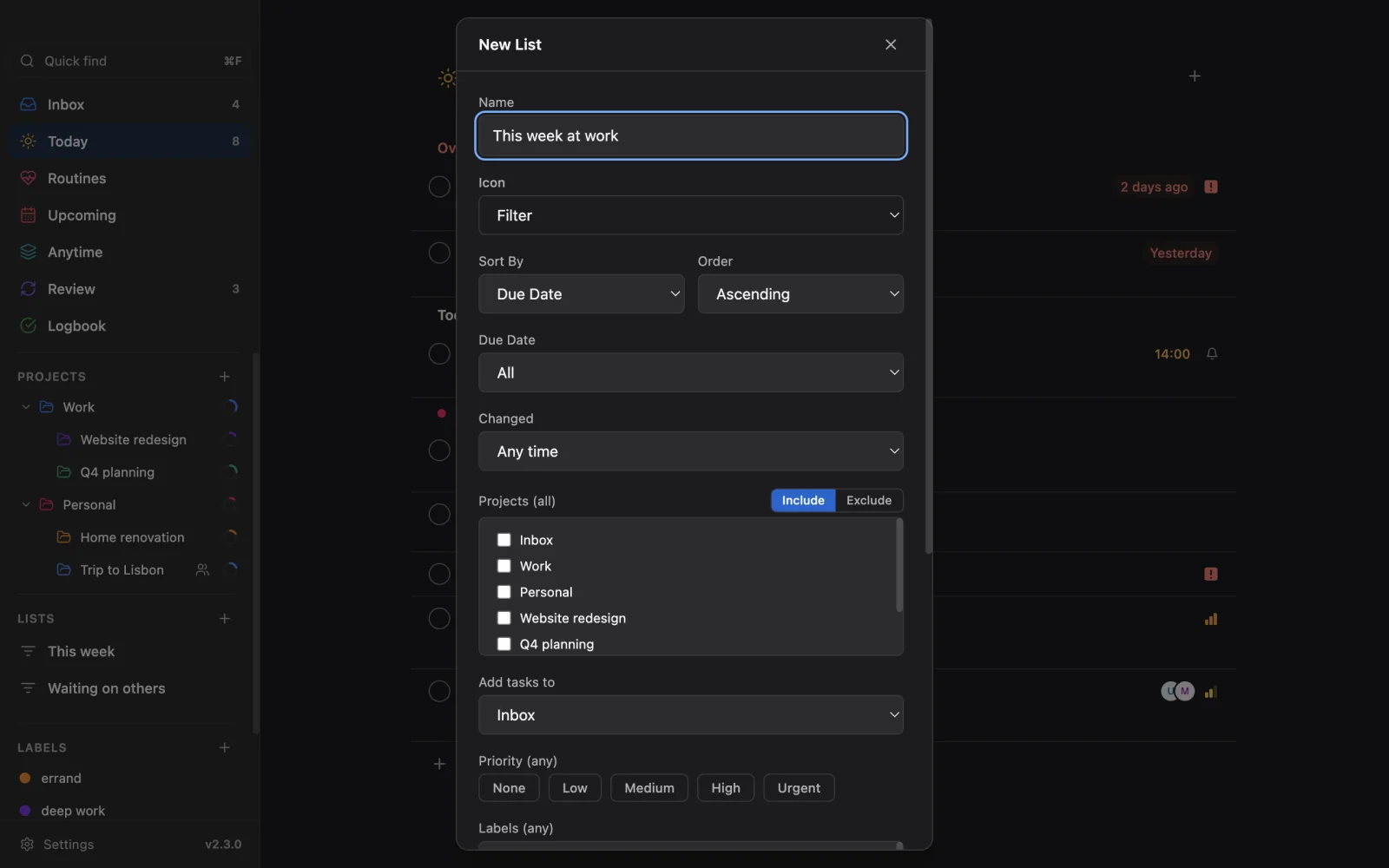
- Click the + button next to your custom lists in the sidebar.
- Type a Name and pick an Icon.
- Set the conditions you want.
- Save.
To change a list later, open its menu in the sidebar and choose edit.
On a phone Phone
Open the drawer and use the + on the custom lists section, then fill in the same fields. You can show a custom list in the bottom bar or on a widget.
The conditions
A task has to match all the conditions you set. Leave a condition on "any" to ignore it.
| Condition | What it does |
|---|---|
| Projects | Only tasks in the projects you pick |
| Labels | Only tasks with the labels you pick |
| Priority | Only tasks with the priorities you tick: None, Low, Medium, High or Urgent |
| Due Date | A window, described below |
| Changed | Tasks changed today, or in the last 3, 7 or 30 days |
| Include completed tasks | Adds done tasks to the list |
| Include tasks due today from all projects | Pulls today's tasks in from every project |
| Add tasks to | The project that new tasks from this list go to, and the Inbox by default |
Due date windows
The Due Date choices are All, Overdue, Today, This Week, This Month, Has Due Date and No Due Date.
For Today, This Week and This Month, Include overdue tasks is on by default, so a task that slipped past still shows up. Turn it off to see only what is due in the window. The window follows your local calendar day, and the list shows the right tasks at midnight without a refresh.
Shared work
When you share projects with others, the editor shows a Shared projects section:
- Assigned: tasks assigned To me, To someone else or To nobody.
- Comments: Unread comments or Has comments.
- Only tasks in shared projects.
Assigned and unread comments match tasks in shared projects only. Has comments matches every project. A task you read in an unread list keeps its place until you leave the list. The section appears only while something is shared, or when the list already uses one of these conditions. See Work with others.
Sort and Then by
Sort by sets the main order, with Order for ascending or descending. The options are Due date, Start date, End date, Created, Updated, Completed, Priority, Progress, Title, Done, Order created and Position. The order names follow the field, such as "Soonest first" and "A to Z". Tasks without the date come last in both directions.
Then by adds a second sort for tasks that tie on the first. Leave it as None if you do not need one.
Rules
A rule is a condition written in Vikunja's filter syntax. It is checked in addition to the conditions above. For example:
done = false && priority > 2
The Rule box shows label and project names instead of numbers, and suggests fields, operators and values as you type. Save stays off until the rule reads correctly. Tick Include tasks without a value if tasks with an empty field should match too.
Quick View and the assistant follow the rule as well.
Icons
The Icon picker shows the icons themselves. On the desktop use the arrow keys, Home and End to move through them. None leaves the icon out of the sidebar, so the name starts where the icon would, which suits a name that begins with an emoji.
Vikunja saved filters
In Vikunja, saved filters used to show up in Vicu as empty projects. Vicu now imports every saved filter it can read as a custom list. The import happens the first time a device syncs its custom lists. An import is a copy: the list says so once, and later changes in Vikunja do not change it. Two devices never import the same filter twice.
To bring in filters you made later, or to import them again:
- On the desktop, open Settings, Projects, Saved filters and choose Import saved filters. Desktop
- On a phone, open Settings, Projects, Custom Lists and tap Import saved filters. Phone
Sync between devices
Custom lists are stored on your server in a hidden task, so every device shows the same lists after it syncs. Vicu syncs them when it starts, when you return to the window and every 5 minutes. A deleted list is cleaned up after 90 days.
If you open a list on an older version of Vicu that does not know a newer condition, it ignores that condition and shows more tasks. Update all your devices to stay in step.
On the desktop, the sync panel lists custom-list changes that have not reached the server, with Sync now and Discard. See Sync and offline.
More conditions with Pro Desktop
Vicu Pro adds conditions such as Available now, Flagged, estimates, project status and promises, plus grouping and a table view. See Power tools.