
Smart lists
Smart lists fill themselves from your tasks' dates. This page explains the five of them, and how to find a task by search.
On this page
In short
- Inbox holds new tasks until you sort them.
- Today shows what is overdue and what is due today.
- Upcoming shows everything due from tomorrow on, day by day.
- Anytime shows every open task outside the Inbox, with or without a date.
- Logbook shows what you have completed.
- You can hide any smart list except the Inbox, and still reach it from search or the command palette.
Inbox
The Inbox is the project you chose at setup. New tasks from quick add, Quick Entry, voice, widgets and the share sheet land here. It is always visible and cannot be hidden.
Tasks with a date come first, then the rest in the order you set. On the desktop, the Inbox header has a sort button. You can also drag a task, or on a phone press and hold and drag, to put it where you want. The order syncs.
On the desktop, Sort the Inbox in the header starts a guided session that goes through the Inbox one task at a time. See Review and guided organizing.
The Inbox does not appear among your projects in the sidebar.
Today
Today shows what you can act on now, in sections:
- Overdue, oldest first, grouped by project.
- Due today, including tasks due earlier today.
- Tasks whose time block starts today.
- Today's routines, when routines are on.
Today follows your local calendar day and rolls over at midnight. When it is empty, Vicu says "All clear" and offers the next task.
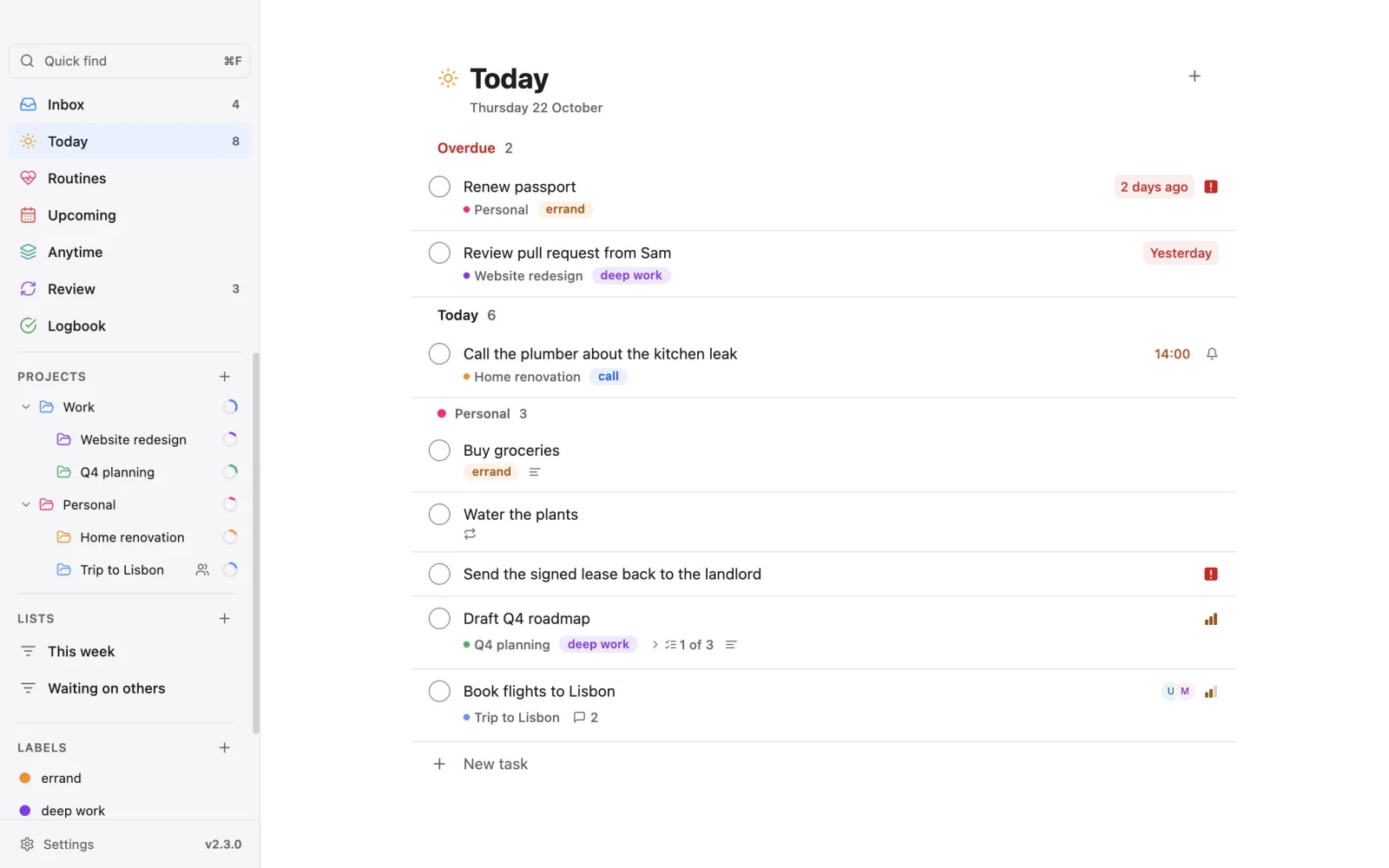
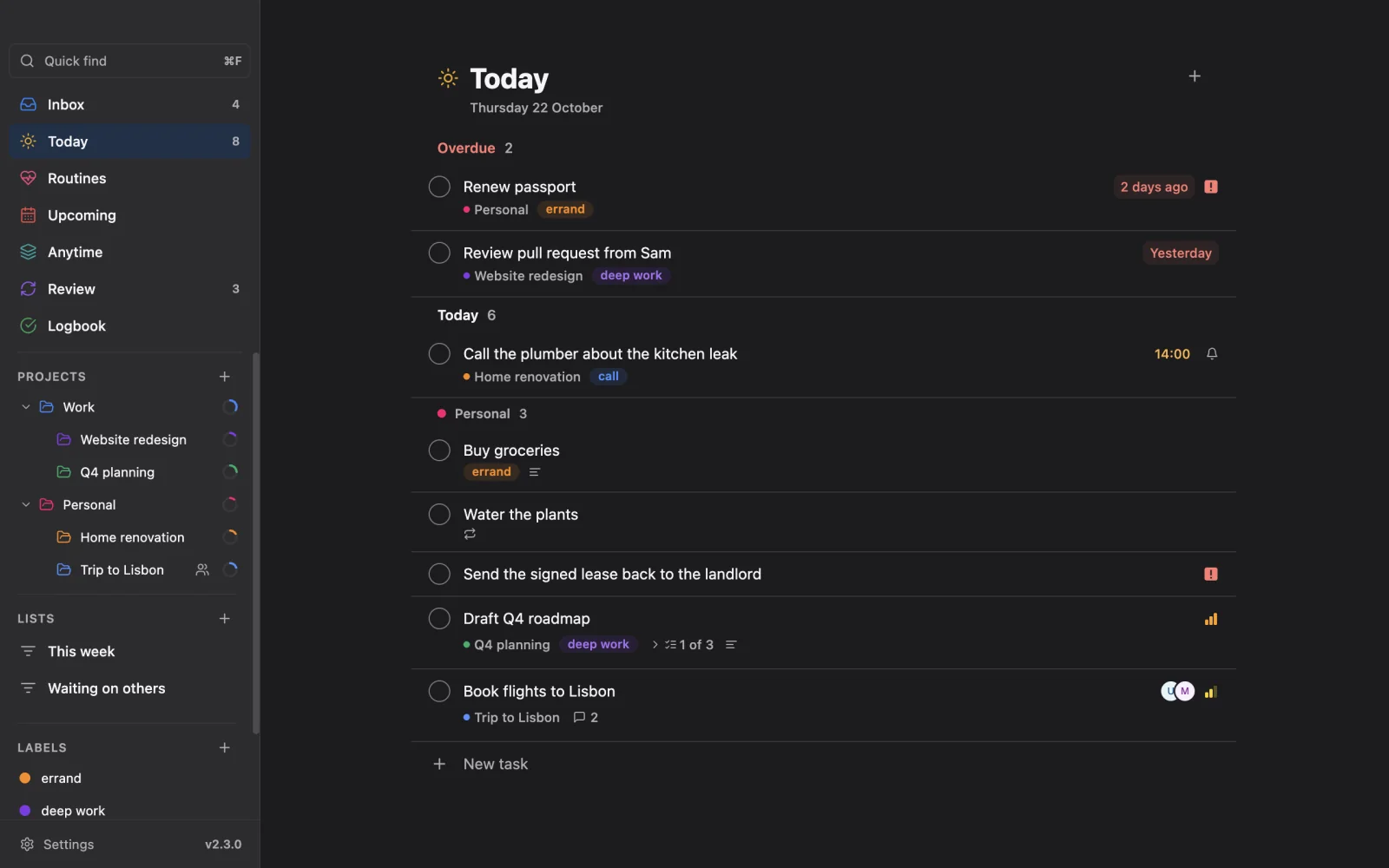
On a phone, the date shows under the title. With the planner on, a List and Day switch appears. Phone
Add a task in Today
A task you add while Today is open is due today. Type a different date to change that.
Upcoming
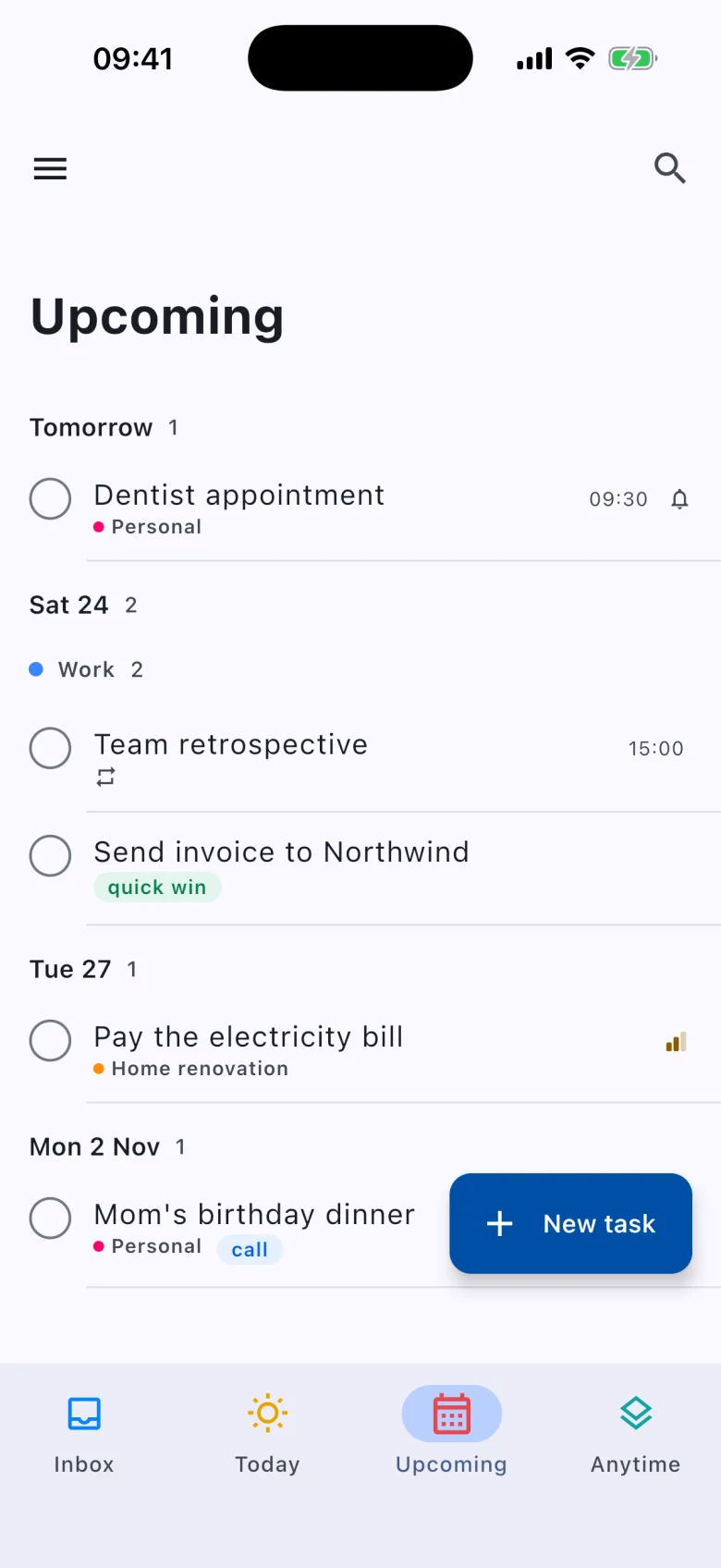
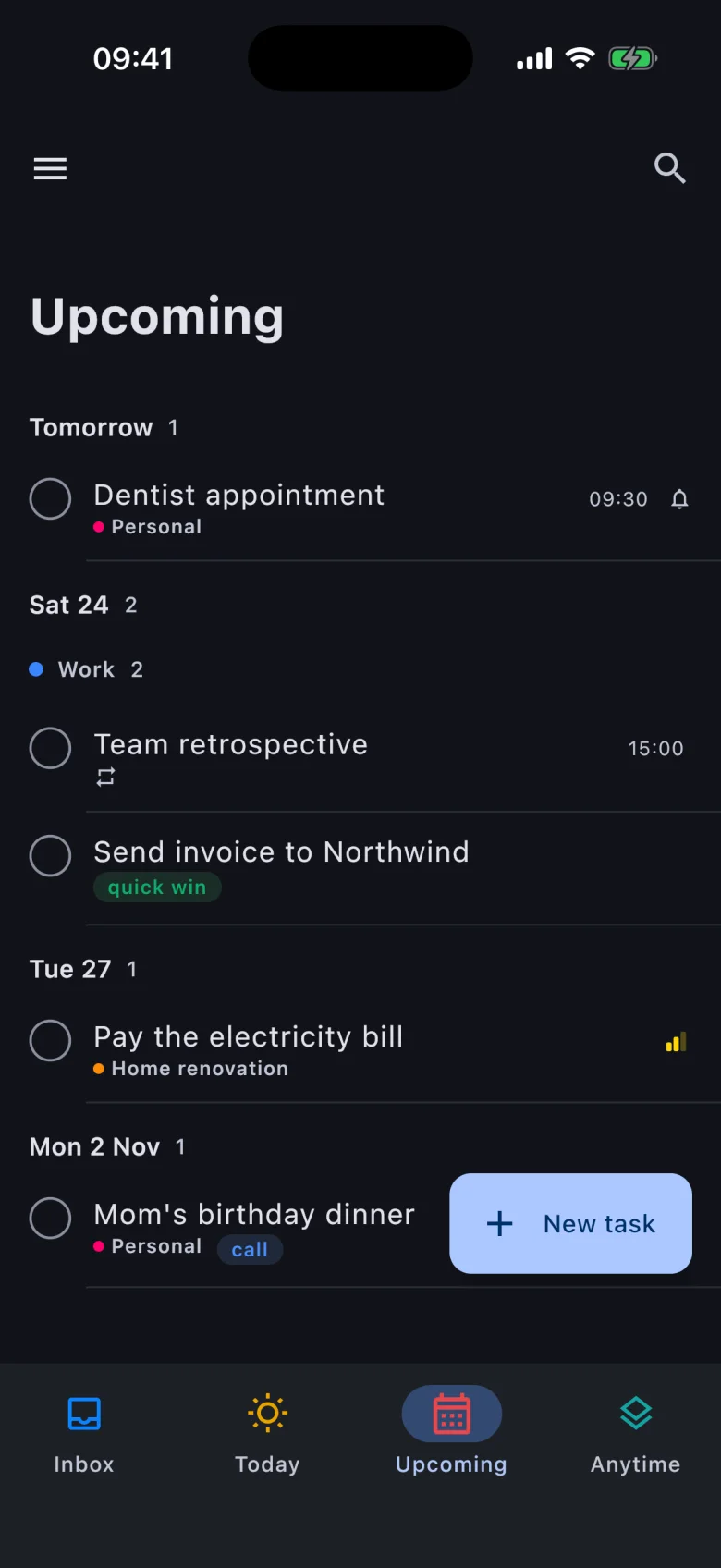
Upcoming shows tasks due from tomorrow on, grouped by day. On a phone, the day headers stay at the top as you scroll, and tasks are grouped by project within each day. Phone
Anytime
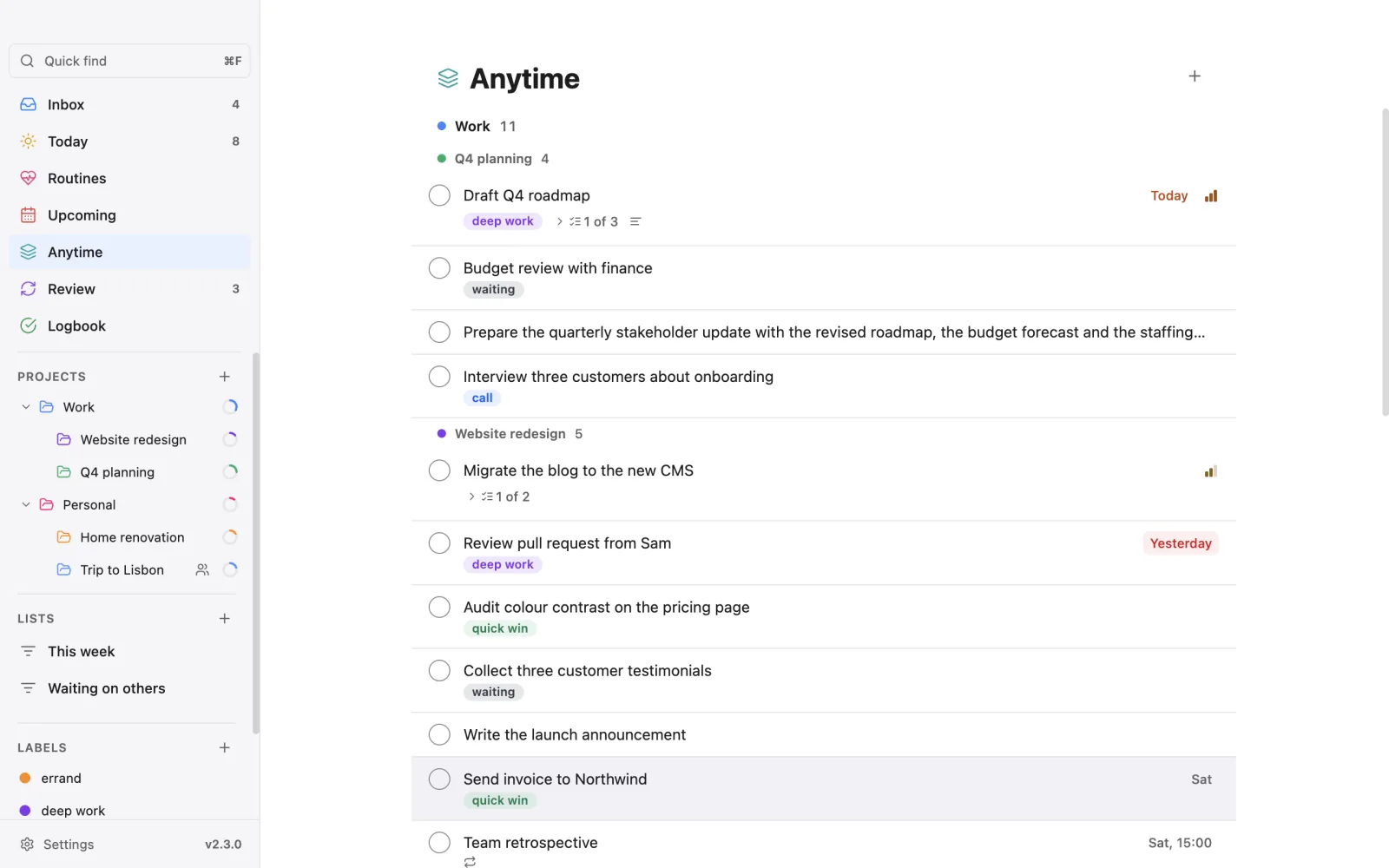
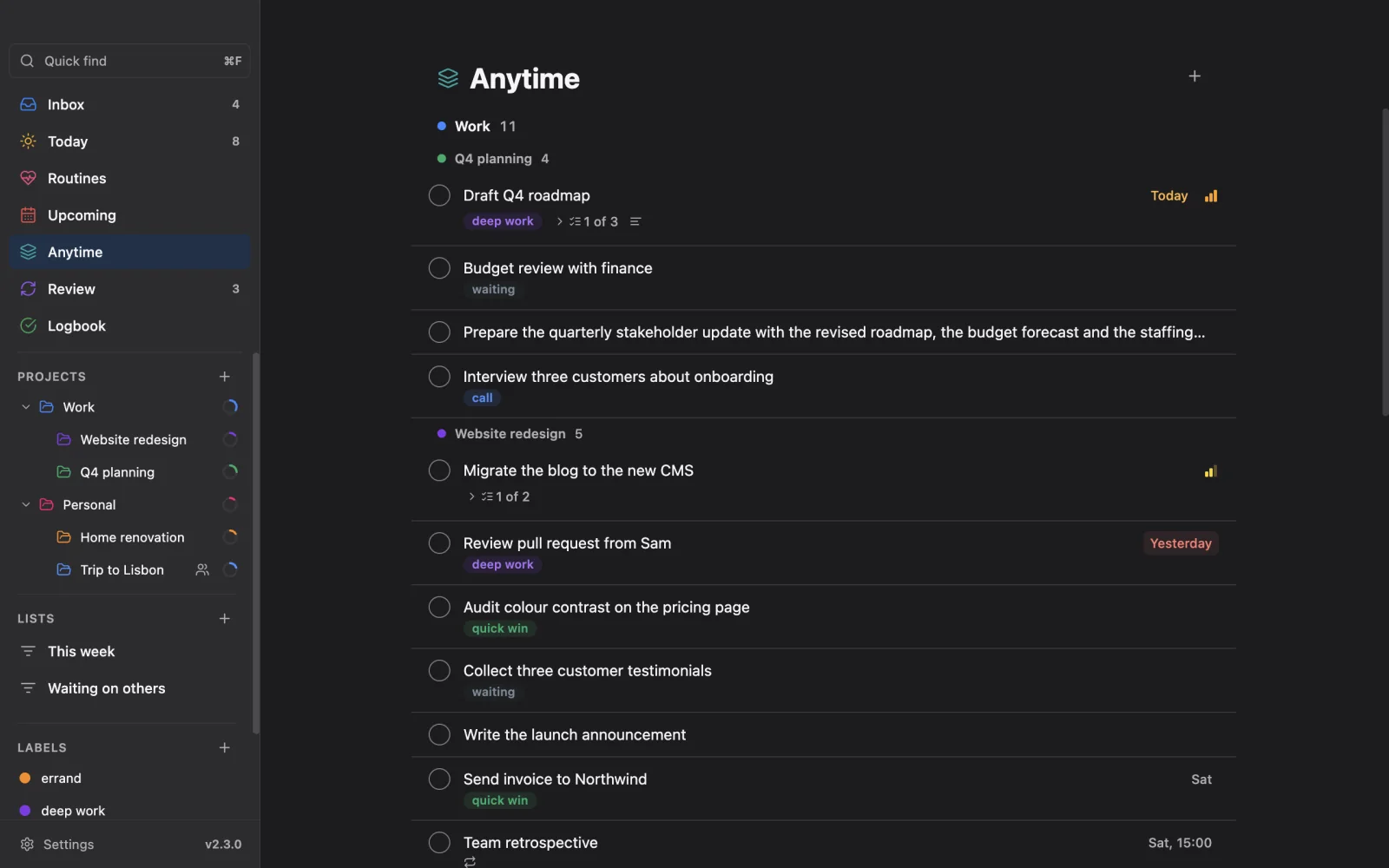
Anytime is your backlog: every open task outside the Inbox, whether it has a date or not. It shows every project level.
Use it when you want to see everything in one place, or to pull a task forward by giving it a date.
Logbook
The Logbook lists completed tasks, grouped by the day you completed them, with the time of day. Older tasks load as you scroll or ask for more.
On a phone, Settings, General, Logbook sets whether the Logbook keeps tasks and for how many days. Phone
Other lists in the sidebar
Besides the five smart lists, the sidebar or drawer can show:
- Routines, Review and Plan when you turn them on. See Routines, Review and guided organizing and Plan your day.
- Custom lists you make yourself. See Custom lists.
- Pro lists such as Flagged and Waiting on, when Pro is on. See Vicu Pro.
Hide the lists you do not use
On the desktop Desktop
- Open Settings, General, Sidebar.
- Clear the checkbox of each list you want to hide.
You can hide Today, Upcoming, Anytime and Logbook, plus Routines and Review while they are on. The Inbox always stays. A hidden list still opens from the command palette. The setting is per computer.
On a phone Phone
- Open Settings, General, Drawer.
- Turn off the views you do not want.
You can hide Today, Upcoming and Anytime (while the bottom bar does not hold them), Logbook, Routines, Review, and Ask once it is set up. Reminders, widgets and notifications do not change. The setting is per device.
Search
On the desktop Desktop
Press Ctrl+F (Cmd+F on a Mac) to open Quick find at the top of the sidebar. Results appear as you type. Search looks at titles, notes and finished tasks.
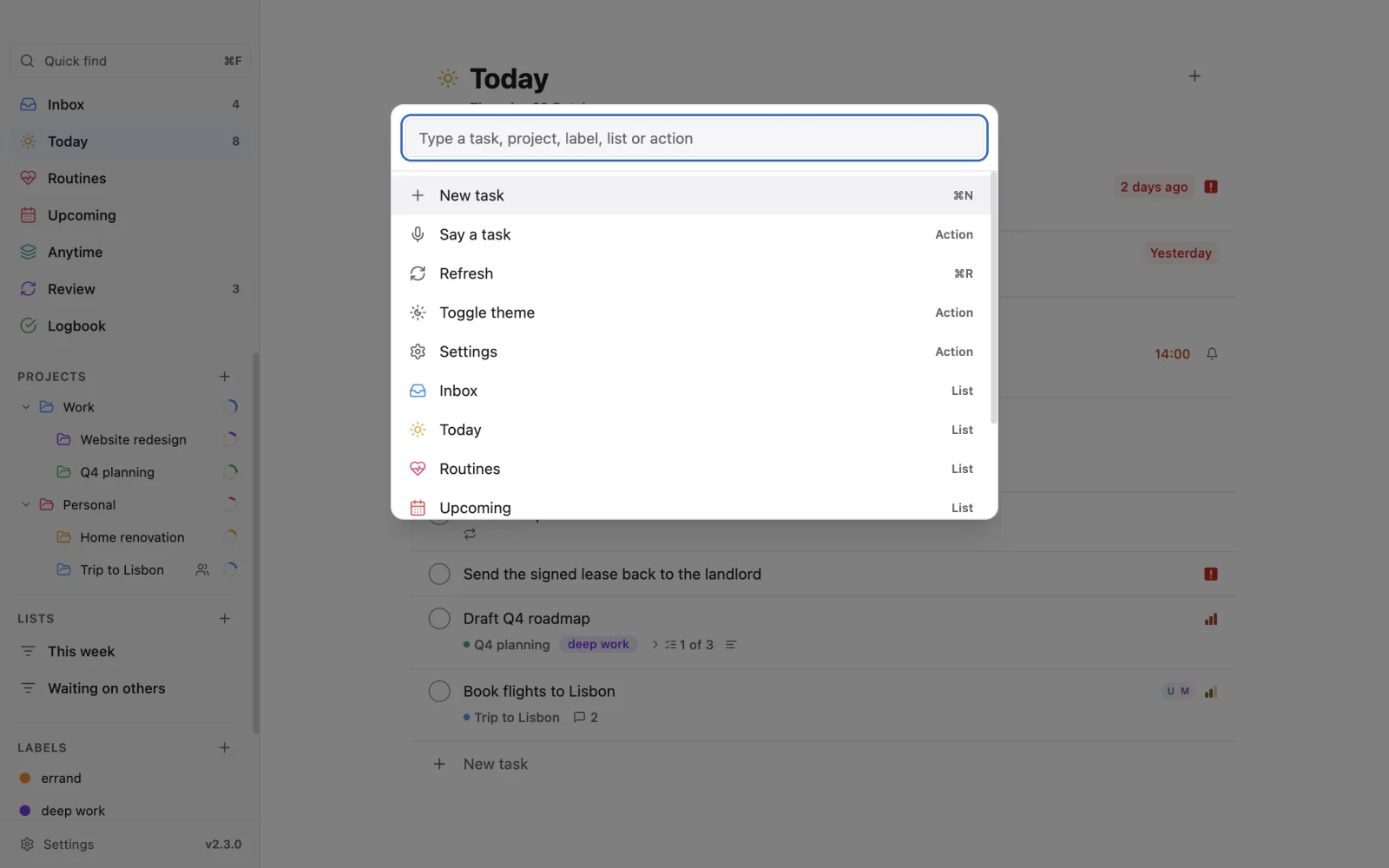
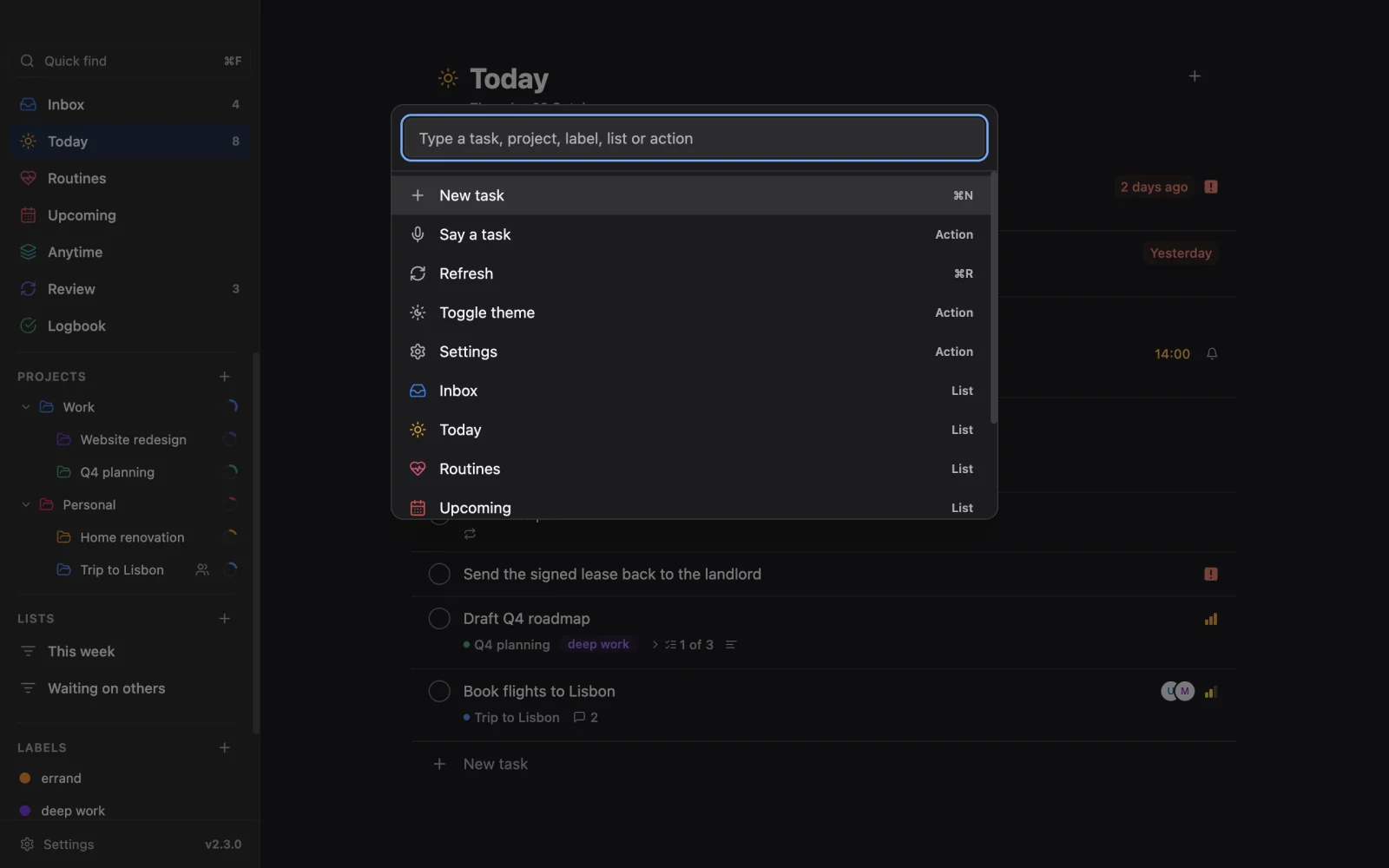
The command palette, Ctrl+Shift+P, jumps to any list, including the ones you hid, and runs any command.
On a phone Phone
Open Search at the top of a list. Local matches show at once, completed tasks have their own section, and the server is asked in the background.
Search filters
Under the search title, chips filter by date, status, labels and priority. Filters last while the page is open, and they work with or without text. Use them alone to answer a question like "high-priority tasks with a label".
Refresh
Vicu refreshes when you return to the window, every 5 minutes while it is visible, and after your computer wakes. To refresh by hand on the desktop, press F5 or Ctrl+R. On a phone, pull down at the top of a list. Smart lists roll over to the new day at midnight.