
Add tasks
Get a task out of your head and into Vicu in a few seconds, from wherever you are.
On this page
In short
- Type it. The new task row at the end of a list, Ctrl+N (Cmd on a Mac) or the phone's + button. Words like
tomorrow 3pmor#workbecome dates and projects. - Quick Entry Desktop is a small window you open with a global hotkey, over any app.
- Say it. Hold + and speak. No setup needed.
- Share it Phone from any app, or use a widget, a launcher shortcut or Siri.
- Paste a list Desktop and get one task per line.
- Reuse a task with templates and Duplicate.
New tasks go to the list you are looking at when that makes sense, and to the Inbox otherwise.
Add a task in the app
On the desktop Desktop
- Click New task at the end of a list, or press Ctrl+N. You can also use File, New task.
- Type the title. Vicu highlights what it recognizes and shows it as chips.
- Press Enter.
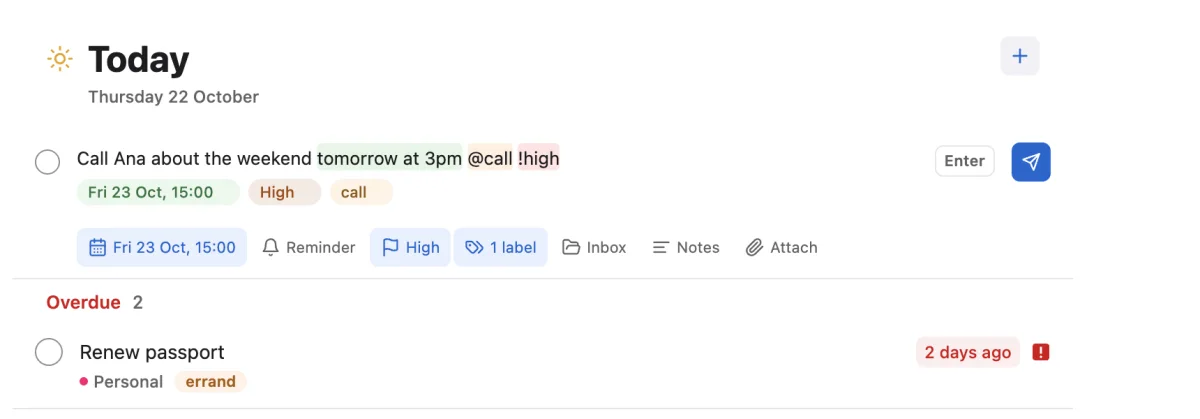
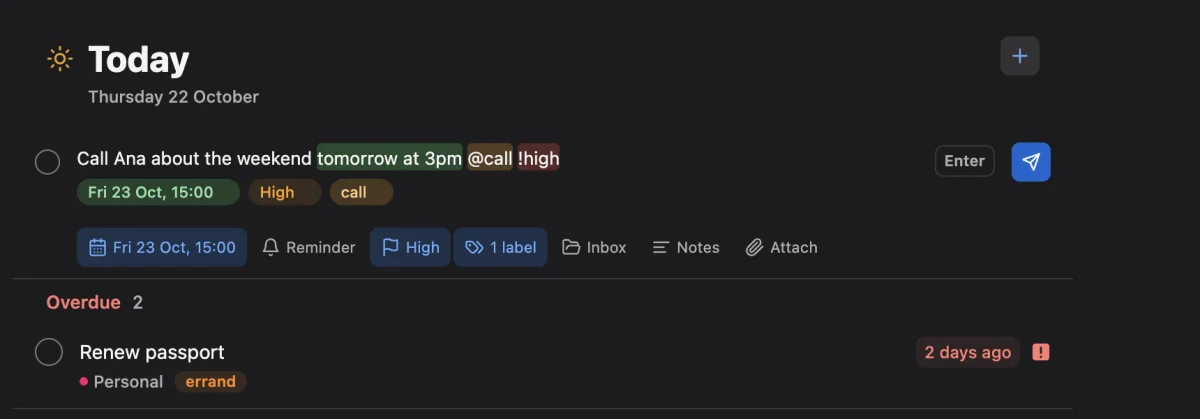
Each chip can be removed, and suggestions for projects, labels and dates appear under your cursor as you type. Chips follow what you type unless you set them yourself. The rest of the text is the title. Quick add lists everything Vicu reads, including the choice between the Todoist-style syntax (@label, #project) and the Vikunja-style syntax (*label, +project) in Settings, General, Task Parser.
In a project, the task goes to that project. In Today, it is due today. In a custom list, it goes to the list's Add tasks to project. In the Inbox, Upcoming, Anytime and a label page, it goes to the Inbox, without a date unless you type one.
Type ! at the start or end of the title to make the task due today. Add for 30m after a time, as in Call Sam tomorrow at 3pm for 30m, to make a time block. See Plan your day.
On a phone Phone
- Tap +. One sheet opens with the keyboard.
- Type the task. Dates, projects, labels and repeats move into chips as you type.
- Tap Add.
A row of chips under the title holds When, Remind and Priority, plus tags, project and repeat once they are set. Tap a chip to choose from options where the keyboard was. Choose Expand, or drag the handle up, for the full editor with notes and a checklist; checklist items become subtasks.
Nothing is saved until you tap Add. The X clears the draft and turns into Undo. The confirmation after adding has Open next to Undo. If you want the sheet to stay open for several tasks in a row, turn on Keep add-task open in settings.
You can also drag + onto a day or a project in Today, Upcoming, Anytime or a project, and quick add opens with that date or project already set.
Quick Entry Desktop
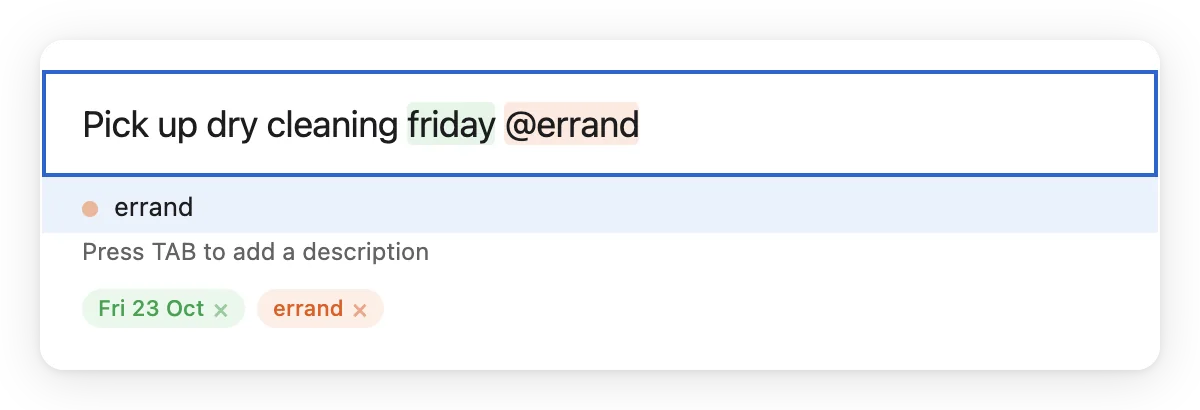
Quick Entry is a small always-on-top window you open from any app with a global hotkey. Type, press Enter, and it is gone.
It is off until you turn it on in Settings, Quick Entry / View. The default hotkey is Alt+Shift+V (Cmd+Shift+Space on a Mac). You can record your own there.
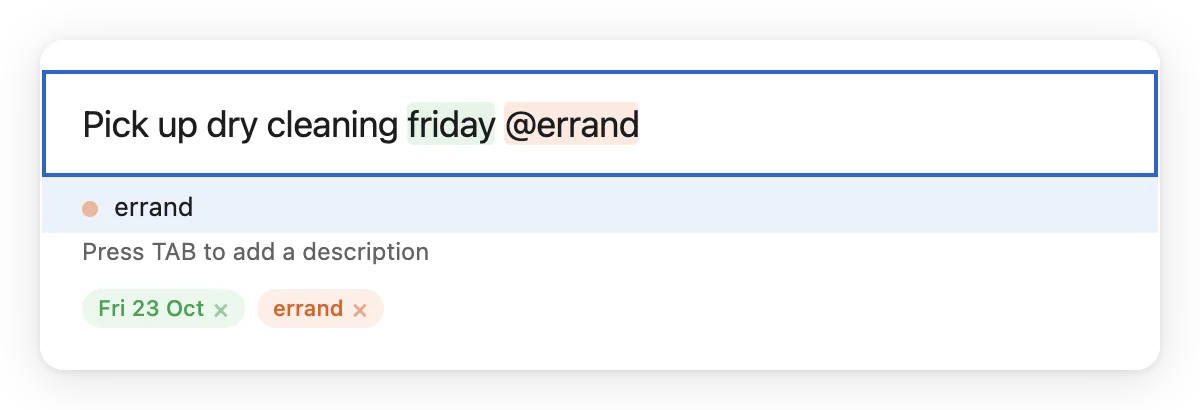
- Hold a modifier key and press the arrow keys to switch the project.
- Add notes under the title. Paragraphs are kept.
- Press Ctrl+L to link the current Obsidian note or the current browser tab to the task. Set both up in Settings, Quick Entry / View. Obsidian detection is not available on Linux.
- It works offline. The task is queued and sent when you are back online.
Quick View is the companion window: a hotkey (Alt+Shift+B by default) that shows any list so you can check things off. See On the desktop.
Say a task
Voice capture works without any assistant.
- Hold the + button for a moment.
- Speak. Your words show live, with the date, project and labels highlighted.
- Let go to add the task. Slide away, or press Esc on the desktop, to cancel.
A short click or tap on + still opens the normal composer. The words are read like quick add, and the task goes to the list you are looking at. A project or date you say wins over the list's default. The default reminder applies.
On the desktop you can also record a Voice input shortcut in Settings, Keyboard Shortcuts. Hold it to talk, or tap it to keep listening until you press it again. It works only while Vicu is in front. The command palette's Say a task starts listening without holding anything.
Voice works with the platform's own speech recognizer: Apple's on a Mac, Windows speech recognition on Windows, and the phone's recognizer on Android and iPhone. On Linux, + opens the composer instead, because there is no platform recognizer.
Sliding up from the held + keeps the microphone open and hands your words to smart dictation, which can make several tasks from one stretch of talk. See The assistant.
From other apps and your phone Phone
| Way | What it does | Where |
|---|---|---|
| Share to Vicu | Share a link, photo or file from any app. Android opens the full task entry. iPhone shows a small sheet with title, notes and attachments, and the task lands in the Inbox the next time Vicu runs. | Android iPhone and iPad |
| Quick add widget | A 2x1 widget with a microphone and a + button | Android |
| Tasks widget | Any list on your home screen, with tap to complete, plus a microphone and + on Android | Android iPhone and iPad |
| Routines widget | Today's routines, tap to log | Android iPhone and iPad |
| Launcher shortcuts | Hold the app icon, then choose Add task or Dictate | Android iPhone and iPad |
| Quick Settings tile | Quick add from the notification shade | Android |
| Siri | "Hey Siri, add a task in Vicu". It asks "What's the task?" and works on a locked phone. | iPhone and iPad |
| Control Center and Lock Screen | An Add task control on iOS 18, which you can also put on the Action Button | iPhone and iPad |
A task shared from another app is not read for dates on iPhone. When you share text, you can choose Make tasks to turn it into task cards if the assistant is set up. See On your phone for widgets and shortcuts in detail.
Paste several tasks Desktop
Copy a list of lines and press Ctrl+V in a list, or use New task from clipboard. Vicu makes one task per line. Each line is read like quick add.
Paste Markdown into notes
Markdown you paste into a task's notes becomes formatting. Typing works too. See Work with tasks.
Reuse a task
Duplicate
Duplicate makes a new open task in the same project with the title, notes, dates, priority, repeat, reminders, labels, assignees and subtasks. A time block is kept too.
- On the desktop: right-click the task and choose Duplicate, use the card's More menu, or press Ctrl+D. Desktop
- On a phone: use the task menu or the selection menu. Phone
A message offers Open for a single copy and Undo, which deletes every copy. Created offline, a desktop copy comes without its subtasks and says so.
Templates
A template is a task you want again and again.
- Open the task's menu and choose Save as template. It keeps the project, notes, labels, priority, repeat, subtasks and reminders. A due date is kept as a number of days from today.
- In a new task row, or in the phone's quick add, use the last button, Template, to see your templates.
- Choose one. Vicu makes the task and opens it with the title selected.
Open the arrow beside a template on the desktop, or press and hold it on a phone, for Edit and Remove. Templates sync to all your devices.
Copy titles
Select tasks and press Ctrl+C to copy their titles, one per line. On a phone, use Copy titles in the selection menu.