
Release notes
What's new in Vicu
What changed in each release of the desktop app and Vicu web, newest first. The desktop app tells you when an update is out; Vicu web is the version your host runs.
Updated · Atom feed · Download the latest
The phone app for Android, iPhone and iPad ships the same versions, usually on the same day; each entry links to its notes. Read both when a release says to update the two together: they read your synced data the same way.
Releases
Vicu 3.0.0 Latest
Vicu Pro, Vicu web and your calendar
Vicu 3.0.0 is the biggest release so far. It brings Vicu Pro, a free set of tools for people who lead work with others; Vicu web, the whole app in a browser, for computers where you may not install anything; and your calendar on the Plan screen. There is also a lot for everyone: make any task a subtask, subtask lists you share, Work and Personal, a week that starts on your day, Vicu in your language, and a window that fits next to anything.
Pro is off until you turn it on. With Pro off, Vicu looks and works exactly as before. Update the phone app to 3.0.0 too, so both apps read Pro's data, events, subtask order and the new list conditions the same way.
Vicu Pro
Some weeks a task list is enough. Other weeks you are waiting on five people, steering three initiatives and running a meeting every day. Pro is for those weeks. It is built in, free, and comes in four parts you turn on one by one in Settings, Pro. Everything it keeps lives on your own Vikunja server, in one hidden task in your Inbox, like Vicu's other synced data. Turning Pro off writes nothing; turn it on again and everything is where you left it.
Watch the five-minute tour, or read what Pro does.
Know what you can do now. Lists can show only what is available now, and every other row says why it is not: it starts later, waits on another task, is not the next step of a sequential project, or is on hold.
- Start dates (
starts monday), "After" another task, flags (!flag, Mod+Shift+F) and estimates (~30m) in quick add. - Projects can be sequential (only the next step is available), parallel or a list of single actions, and a project or a label can be put on hold.
- Focus (Mod+Shift+O) narrows every list to the projects you pick, and repeats can end after a date or a number of times.
Promises and people. Mark a label as a person, and quick add knows who is promising what.
Jan: send the deck fridayis Jan's promise to you;for Jan: draft the planis yours to Jan. Write$Janor$"Jan de Vries"anywhere in a task, orfor $Priyafor whom it is promised to. Typing$suggests people, and a new name becomes a person when the task is saved.- When a promise is due, give the verdict with a key from 1 to 6: Delivered, Late, Not yet, New date, Dropped or I did it. Waiting on lists everything others owe you.
- Each person has a page: their open promises, the last 90 days in plain words, 1:1 topics you want to raise, and a 1:1 agenda to copy. A label can be private, so its topics never end up in copied text.
- Copy a recap of what was agreed. Import what Microsoft 365 Copilot or another assistant found in your meeting notes or mail (Mod+Shift+M): Vicu shows the prompt to use, and nothing is added until you choose Add.
Groups and sessions. A team, a stand-up or a steering group becomes a group with its own label.
- A group's page shows its actions by owner, how reliably they land (in counts, never a score), its issues, decisions, open questions, blockers, commitments and things to stop, and its past sessions.
- Run a weekly session or a stand-up step by step: the open actions, the issues and blockers, what is new, and the read-back. At the end Vicu writes a recap in the group's language, ready to paste into mail or chat. A second "Not yet" on the same action adds an issue for the group.
- Follow-ups at the top of Today: verdicts that are due, a check with each owner before their actions are due (with a message to copy), promises to bring back, recaps not yet sent and the weekly note. Each can be dismissed for today.
- A promise can have a check date (
check on 3 feb) or opt out of checks. Check days, working days, the weekly note's day and the language of copied text are in Settings, Pro. - Text for other people (recaps, checks, agendas, the weekly note) can be copied in another language than the one Vicu shows, as rich text or Markdown.
90-day plans. Any project can become a 90-day plan from its menu: a first day, a last day and optionally a group. The plan is a table of its items by week, counted from the verdicts of their milestones. There is no status colour and no percentage, on purpose: the counts say what happened. Closing a plan can carry the open work into a new project that becomes the next plan.
Portfolio. Initiatives with a cap, a rank and parking (or No limit); readiness; escalations drafted when a promise is missed twice; request triage (req:); meetings that go through the people one card at a time; and the Sponsor desk with a one-pager to copy or print.
Power tools.
- Custom lists gain Pro conditions, grouping, the fields each row shows and starter lists.
- Any list can show as a table: choose its columns, sort by several of them in the order you click, and reset with one button.
- The inspector (Mod+I) sets start, estimate and flag for a whole selection.
- Plan my day uses your estimates and proposes a daily focus block.
- The weekly review gains the execution steps and a mirror of your week, and there is a quarterly impact summary.
Pro's assistant (off by default): Ask can look up promises, people and the portfolio, the import turns plain notes into promises, and a meeting card drafts promises from what was said.
vicu:// links open a task, a view or Quick Entry from other apps, scripts and shortcuts.
Pro is an alpha: some of it will change as it is used. Keep your Vikunja server backed up while you try it, and tell me what works and what does not in the Vicu Pro discussion.
Vicu web
I built Pro for work, and work often happens on a laptop where you may not install anything. Vicu web is the answer: the same Vicu, served from a small container next to your Vikunja server and opened in any desktop browser. Your tasks, projects, lists, comments, Plan, your own events, Work and Personal and all of Pro are there. Sign in with a password, single sign-on (OIDC) or an API token; reminders arrive as browser notifications while a tab is open, and several tabs work side by side.
What needs a computer of your own stays in the desktop app: the assistant and voice input, working offline, connected calendars, Quick Entry and Quick View, and the browser and Obsidian links.
Whoever runs your Vikunja can start it with one command:
docker run -d --name vicu-web -p 8080:8080 \
  -e VIKUNJA_URL=http://vikunja:3456 \
  ghcr.io/rendyhd/vicu-web:3.0
The image is built for x64 and arm64. latest follows each stable release, 3.0 stays on this version line, and 3.0.0 is this release exactly. Two compose files are attached to this release: vicu-web-docker-compose.yml starts Vicu web together with a new Vikunja server, and vicu-web-docker-compose.traefik.yml adds it next to a Vikunja you already run, behind Traefik. The hosting guide covers HTTPS, single sign-on and the rest; Vicu web in the user guide is the page to send to the people who will use it.
Events and calendars
- Your events on the Plan screen. Add your own events, one-off or repeating, and see them next to your time blocks. Move and resize them like blocks; a repeating event asks whether the change is for this time, this and the following, or all. New event is in the command palette and Ctrl+Shift+N on Plan, and the title reads the day and time the way quick add does.
- Connected calendars. Show a calendar link (ICS), a CalDAV account, a Microsoft 365 or Google account, or, on a Mac, the calendars of System Settings. They are read only and stay on this computer. Busy only shows busy time without titles. For Microsoft 365 and Google you use an app registration of your own for now; the add dialog explains how.
- A calendar file as a live calendar. Any program that writes an .ics file (Thunderbird, a script, an export) can feed the Plan screen; Vicu reads the file again whenever it changes.
- Classic Outlook on Windows. Show the calendars of the desktop Outlook while it is open, without a sign-in. Vicu never starts Outlook, and the add dialog spells out the limits.
- Plan my day counts events as busy time.
- Import a calendar file into your own events, with one Undo.
- Plan's settings moved to Settings, Pro, next to Pro's tools. Plan works the same with Pro on or off.
Tasks and subtasks
- Make any task a subtask. "Make subtask of..." in the task menu (for one task or a selection) and the card's More menu, "Add existing task" under a task's subtasks, or drop a row on the middle of another row. "Remove from parent" takes it out again, and so does dragging a subtask out of its card. Every change has Undo and waits offline. (#78)
- Subtask lists everyone shares. The order of subtasks is now kept on the server, so everyone on a shared project sees the same order, and new subtasks go to the end. The header says "2 of 7" and has Find, Sort A to Z, Done to the end and Hide done. Drag, or use Move to top, up, down and bottom (Alt+Shift+Up and Down). The add field finds existing subtasks, and each subtask's menu has Duplicate, Open, Remove from parent and Delete. An open card stays current, and shows who added a subtask on a shared project. (Vicu-Mobile#119)
- When choices. Pick the times of day ("tomorrow morning", "friday evening") and the day choices the When panel offers, in Settings, General. The When panel shows those times, Move by shifts one task by a step, and the task menu's Postpone has Tomorrow, Next week and the Move by steps.
- Your week, your start. The week starts on Monday, Sunday or Saturday: month calendars, This week, "next week" and "next friday", the Plan week and routine history follow it. The setting syncs to your other devices. (#71)
- Notes changed in two places keep both versions, the other device's and yours with a line between them, and Vicu tells you, instead of one silently replacing the other.
- Lists in notes. While the notes have focus, a row under them has Checklist, Bullet list and Numbered list (Mod+Shift+9, 8 and 7).
- Paste a picture in the title and it goes into the notes and uploads.
- Copy a picture from the image viewer with Copy or Mod+C.
- Links in comments are links again, bare web addresses included. (#79)
- Routine history. A routine's History shows "3 in a row, 12 of 13 in the last 30 days", a month with a mark for each day, what a day held and twelve weeks of bars.
Lists, projects and the window
- Work and Personal. One account, two sides of life. Mark a work label and your work projects, and a switch at the top of the sidebar shows Work, Personal or All. Lists, counts, Plan, Review and Quick View follow it; search still finds everything and marks the other side, and reminders are never filtered. In Work, new tasks become work. Pro can show only in Work.
- Filter a project by label. A button next to the project's menu shows its labels with counts. (#72)
- Completed tasks in a project. Turn on Show completed tasks in Settings, Projects, Display, and every project and the Inbox end with a folded Completed row, newest first. (Vicu-Mobile#114)
- Reminders in custom lists. A list can show tasks with or without a reminder and sort by the earliest one.
- Saved filters, again. Importing a saved filter that already has a list updates it in place, says what changed in Vikunja, in Vicu or both, and asks Overwrite or Skip, with one Undo. A filter changed in Vikunja is offered after a sync, and project views with their own filter or sort can be imported as lists. (Vicu-Mobile#111)
- Arrange the sidebar. Settings, General, Sidebar puts the smart lists, Pro, projects, lists and labels in one list you can drag into any order. Lists you place last stay pinned at the bottom.
- Narrow windows. The window can be as narrow as 360 pixels, for tiling window managers and half screens. Below 664 pixels the sidebar becomes a drawer, and in a wider window the same button and Mod+\ hide it. (#73)
- A new Settings. Settings has a menu on the left with the sections of each tab.
- The close button (Windows and Linux) can minimize to the taskbar, hide to the tray or quit, and the count on the app icon stays current while the window is hidden. (#68)
Notes to tasks
With the assistant set up, "Make tasks from notes" in the command palette, or a file dropped on the window, turns typed notes, PDFs and photos of pages into a plan: the tasks with an owner each, the decisions and the open questions. Tick what you want, pick an owner per task (you, someone to assign, or a Pro promise) and Add makes only the ticked tasks, each with a line saying where it came from, with one Undo. Photos of pages need a model that reads images; with a cloud provider, Vicu asks before it sends one.
Vicu in your language
Vicu can now show other languages: Settings, General, Language. Nearly all text of every window, menu and notification is ready for translation, and anything a translation does not cover yet shows in English. Dutch is the first, and covers a first part of the app. Would you like to see Vicu in your language? The translators' guide explains how to help.
Fixes
- Changes made after Wi-Fi drops are sent or kept in the offline queue. A task created after the connection went away could spin forever and never arrive. (#77)
- A reopened subtask showed twice, once as a task of its own. It now shows once, under its parent, and the checkbox of a done subtask in the card reopens it. (#76)
- Large task histories. With thousands of done tasks, Vicu's background checks could keep Vikunja 2.8 busy until requests timed out. They are much lighter now and back off after a failure. (#75)
- Waking a Mac or switching Wi-Fi could show "A JavaScript error occurred in the main process" or add a task twice.
- Hotel and firewall pages. A sign-in or block page in front of your server is no longer read as your server answering: nothing is lost, the change waits, and you stay signed in.
- A change you may not make on a shared project goes to failed changes as "no write access" instead of holding up the queue, and waiting changes can be discarded.
- Slow connections. A request times out after 10 seconds without data, not 10 seconds in all.
- A repeating task completed on two devices moves on once, not twice.
- A calendar with many tiny repeating events can no longer hang the app.
- Safer files. Downloaded attachments are marked as downloads, and more risky file types are shown in their folder instead of opened.
- On a Mac, the browser link uses a signed helper, and the app can no longer be started as a plain script runner.
- Two routine copies with the same id: your own wins.
- Sharing the Inbox says it also holds Vicu's synced settings.
Support Vicu
Vicu is free and open source, with no ads, no Vicu account and nothing behind a paywall, Pro included. I build it in my evenings, next to a full-time job and a young family, and I use it every day. If it helps you:
- Support Vicu on Ko-fi. Every tip, big or small, tells me this work matters to someone.
- Star the desktop and mobile repositories, and tell a friend who runs Vikunja.
- Report a bug or share an idea: desktop and web, phone, Vicu Pro.
- Read the user guide and what's new on vicutodo.app.
Thank you.
Vicu 2.8.0
Saved filters, Markdown notes and offline files
Supporting Vicu. A couple of you have asked how you can support Vicu, so there is now a page for it: ko-fi.com/rendyhd. I build Vicu in my evenings, next to a full-time job and a young family. I made it because I wanted it myself, and I still use it every day. There are no ads, no Vicu account and nothing behind a paywall, and that won't change. I truly appreciate the gesture: every tip, big or small, tells me this work matters to someone. Thank you.
Vicu 2.8.0 brings Vikunja's saved filters into Vicu, turns Markdown into formatted notes, keeps files you add offline, and makes it easier to move a plan to another day. Linux AppImages can now update themselves, and an update no longer unpins Vicu on Windows. Update the phone app to 2.8.0 too, so both apps read saved filters, list rules and planner moves the same way.
New
- Saved filters. Vikunja's saved filters showed up as empty projects. They now become custom lists: Vicu imports every saved filter it can read the first time it syncs your lists, and Settings, Projects, Saved filters offers new ones and has Import saved filters. An import is a copy, which the list says once, and two devices never import the same filter twice. (Vicu-Mobile#103)
- Rules in custom lists. A custom list can have a rule in Vikunja's filter syntax, such as
done = false && priority > 2, next to its other conditions, and Quick View and Ask follow it too. The editor shows label and project names, suggests as you type, and keeps Save off until the rule reads. - Then by. A custom list can sort by a second field, and the orders are named for the field, such as "Soonest first" and "A to Z".
- Markdown in notes. Markdown you paste into the notes becomes formatting, so a pasted
[text](url)is a link. Typing Markdown formats as you go: headings, quotes, lists,[ ]checklists, dividers, bold, italic, strikethrough, code and links. Notes are still saved as Vikunja's HTML. (#66) - Planner: another day. A block's popover has a Day row: Today, Tomorrow, the next few days, or Pick a date. In Day view, a drag that rests on Back or Forward turns the page, so a block can go to another day in one move, and a row above the timeline shows the day's tasks without a time. (Vicu-Mobile#101)
- Open a duplicate. After Duplicate, the message has Open for a single copy and Undo for any number; Undo deletes every task the duplicate made. (Vicu-Mobile#97)
- AppImage updates. The Linux AppImages carry update information and a
.zsyncfile, so AppImageUpdate, Gear Lever, AppImageLauncher, AM and other managers can find and fetch new versions. Pre-releases follow newer pre-releases and the next stable. With thanks to @Pegoku. (#64, #65)
Fixes
- Files added offline. Browse files, a file dropped on a task and an image pasted into the notes now wait in the offline queue when the server cannot be reached, instead of failing, and upload once it is back; images land at the end of the notes. The attachments popover lists waiting and refused uploads with Retry and Remove. (Vicu-Mobile#104)
- Space after a link. A space typed right after a link in the notes was lost. (#67)
- Taskbar pin on Windows. Updating no longer unpins Vicu from the taskbar. A reinstall still goes to the folder of the previous install. (#69)
- Typing a time. Editing the time of a date such as "Today, Oct 8, 1:00 PM" by hand in the When panel no longer clears the date. (Vicu-Mobile#98)
- Plan on a Mac with its own region. Plan crashed on a Mac whose region was chosen apart from its language. Dates now follow that region.
- Quick Entry. The text fields no longer draw a heavy blue outline around the whole entry.
- Times with dots. Quick add reads "3 p.m." and "9 a.m." as times, as the phone does.
Vicu 2.7.0
Day planner, templates and search filters
Vicu 2.7.0 adds a day planner, task templates and filters in Search. Comments can hold files, and text finally has a right-click menu. Update the phone app to 2.7.0 too, so both apps agree on time blocks, templates and subtask order.
New
- Plan your day. Plan puts a list of tasks beside a timeline. Pick a list, drag a task onto the timeline or draw on empty time, and look at a day, three days or a week. Move a block or either edge by pointer or keyboard. Routines and due times show as pills at their times. Fit gives a day's tasks without a time the next free slots, with Undo. New task (Ctrl+N, File, or the palette) opens a title box at the day's next free time. It is off until you turn it on in Settings, with Show Plan in the sidebar. How it works. The overlap columns, gestures and drop come from the day calendar @chuwy proposed in #58, with thanks; they now sit on the task's own start and end dates, so the phone reads them too. (#53, #60)
- Plan my day. A short session that takes you through leftovers, choosing what to do and arranging it. Nothing is placed until you accept, and Undo all puts it back. It can remind you when each block starts. With the assistant set up it suggests times and lengths, and it works fully without. An evening notification can offer it for tomorrow.
- Time blocks from quick add. "Call Sam tomorrow at 3pm for 30m" makes a task with that time set aside, from the new task row, Quick Entry, pasted lines and voice, whether the planner is on or not. A block shows on its row, in Quick View and in Ask's answers, and puts the task on Today on that day. It moves with the due date, a duplicate keeps it, and a new task's default reminder goes by the block's start. Standalone mode has no blocks, because a local task only keeps a due date.
- Task templates. Save as template, in a task's More menu and context menu, keeps its project, notes, labels, priority, repeat, due date as days from today, reminders that count from the due date, and subtasks. The new task row then has a last Template button that lists your templates, with a small arrow to edit or remove one. Templates reach your other devices.
- Filters in Search. Chips under the title narrow by date, status, labels and priority, for as long as the page is open, with or without text.
- Files in comments. Attach a file with the paperclip, a paste or a drop. Images show in the thread and open in the viewer, and other files offer Open and Save. An edit keeps the files, and deleting a comment leaves them on the task, which the question says. A file deleted from the task reads "No longer available".
- Image thumbnails. An image in a task's attachments shows a preview, and the preview and the name both open the viewer.
- Right-click menu for text. Spelling suggestions, Cut, Copy, Paste and Select All in a text field, and Copy on selected text anywhere else. Menus of rows and the sidebar are unchanged.
- Move subtasks. A grip appears on hover, and a subtask's menu has Move up and Move down. The order is kept for your account, so other people and Vikunja's web app keep the server's order.
- Change a date in Ask. A due date on a proposal card can be changed before you apply it, and the assistant is told what you changed.
- Long notes. Long notes fold at half the visible height with Show all. List lines have Move line up and down in the text menu and with Alt+Up and Alt+Down.
Fixes
- Dragging a task. A task dropped on a project, label, section or Plan now lands on its target instead of flying back to its old place first. While you drag, the cursor stays a grabbing hand, rows show no hover or tooltip, and the task is a small chip beside the pointer so the target stays visible.
- Words in a title. An amount of time is only a date right after "in". "Call 30m", "Rest 3 days" and "Plan the week" keep their words in the title instead of turning them into a date.
- Mentions. A key pressed right after picking a mention stays where it was typed, so "see you" no longer comes out as "ee yous".
- New task from the palette. The new task row could close again right after opening when the list was still loading.
- Refused uploads. A file the server refuses now counts as failed in the file dialog.
- Comment buttons. Edit and Delete on a comment are larger targets.
- Task card. The checkbox lines up with the title, and the subtask field stays in view while you add several in a row.
Vicu 2.6.3
Comments on every task and roomier rows
Vicu 2.6.3 brings comments to every task, opens images inside the app and adds roomier task rows. The AppImage now runs on Fedora Atomic. Update the phone app to 2.6.3 too, so both apps agree on comments and custom lists.
New
- Comments on every task. Comments no longer need a shared project. Every open task has Comments, and on a project nobody else can see they are notes to yourself, with their count on the row. Assign, the unread mark, mentions and Notify me stay on shared projects. A custom list set to any comments now matches every project. (#63)
- Images open in the app. An image attached to a task, or a picture in its notes, opens in a viewer over the app. It fits the window, a click shows it at its own size, Left and Right go through the task's images, and the header has Open in default app, Save and Close. Other files, HEIC and TIFF still open in the default app.
- Comfortable task rows. Settings has Task rows. Compact stays the default. Comfortable shows up to three lines of title and a line of notes.
- Dates that say the day. Date chips, on the open task and in the new task row among others, now give the word and the date for yesterday, today and tomorrow, such as "Today, 7 Oct".
Fixes
- Pictures in notes. Opening a task could lose track of the pictures in its notes, so a later edit saved the notes without them. They now stay.
- When popover. Setting a date or a custom time no longer closes the When popover, whether the task moves up or down the list.
- AppImage on Fedora Atomic. The AppImage now uses the static runtime, which brings its own FUSE, so the system no longer needs FUSE 2. (#62)
- Menus. Menu items that open a picker or a dialog, such as Schedule and Move to project, no longer end in dots.
Issues closed
The phone app's issues closed by this release are listed in its 2.6.3 notes.
Vicu 2.6.2
Duplicate tasks and a shorter Today
Vicu 2.6.2 lets you duplicate tasks and assign people to several tasks at once. Today keeps its routine section short, projects and lists can go without an icon, and you can play the completion sound from Settings. Update the phone app to 2.6.2 at the same time: it has the same changes.
New
- Duplicate a task. Duplicate task is in a task's context menu and in the open task's More menu, and Ctrl+D (Cmd+D on a Mac) duplicates the selected tasks. The copy is a new open task in the same project with the title, notes, dates, priority, repeat, reminders, labels, assignees and subtasks. Offline, the copy is made without its subtasks, and Vicu says so. Copy task (Ctrl+C) still copies only the titles.
- Assign several tasks at once. When every selected task is in a shared project, the selection bar and the context menu have Assign. A person assigned to all of them is ticked, to some of them partly ticked; pick someone to assign them to every selected task, or a ticked person to take them off all of them.
- A shorter routine section on Today. Today shows one row per routine, at its next time, with how far you are (such as 1/3) for a routine with several times. Only the routines due within two hours, or still open from earlier, show: two by default, the rest behind one line such as "2 later today". The Routines header folds the section. Choose how many show in Settings, Routines, Routines shown on Today.
- No icon. Edit Project has Folder or None, and a custom list's icon picker has None, for names that start with an emoji. With None the name starts where the icon would be. The choice syncs to the phone app.
- Play the completion sound. The completion sound's Test button is now Play. It plays the sound from the start, and a file that cannot be played says so.
Fixes
- Assistant addresses. Switching provider no longer wipes the address you typed for Other: each provider keeps its address and models. Other, Ollama and Open WebUI keep up to five saved addresses, each with its own models and key, and Add address saves another one. The address field says that the version path (such as /v1) is needed, and an error from an address without one says it may be missing.
- Assistant keys. Each provider now keeps its own key, and each saved address of Other, Ollama and Open WebUI its own, so a key only goes to the address it was saved for. The key you had before moves to the provider you were using.
Vicu 2.6.1
Sign in with a passkey
Vicu 2.6.1 lets you sign in with an identity provider that asks for a passkey, such as Pocket ID, on macOS and Linux. Update the phone app to 2.6.1 at the same time: it does the same.
Fixes
- Sign in with a passkey. On macOS and Linux, identity providers that sign in with a passkey, such as Pocket ID, could not finish in Vicu's sign-in window: it kept loading or said "An unknown error occurred". Vicu now notices the passkey request, closes the window and offers to sign in through your browser, where passkeys work. Uses a passkey? Sign in through your browser is also on the sign-in screen, and Vicu remembers which way you used when it asks you to sign in again. Windows was not affected: Windows Hello handles passkeys there.
- The browser sign-in needs one setting at your provider: add the redirect address the sign-in screen shows (it has a Copy button) to Vikunja's client there.
Vicu 2.6.0
Your computer by name, and list icons you can see
Vicu 2.6.0 names your computer in Vikunja's list of sessions and shows the custom list icons themselves when you choose one. Update the phone app to 2.6.0 at the same time: it brings guided organizing and the weekly review to Android and iOS.
Changes
- Sessions in Vikunja. Vikunja's Settings, Sessions now names Vicu and the computer, for example "Vicu/2.6.0 (Windows; DESKTOP-4K2H1)", instead of a long browser string. A session from before keeps its old name until that computer signs in again.
- Custom list icons. The New list and Edit list dialogs show the icons themselves to choose from, instead of a list of names. The arrow keys, Home and End move between them.
Vicu 2.5.1
Guided organizing and the weekly review
Vicu 2.5.1 helps you deal with the tasks you have put off: guided sessions walk you through them one decision at a time. It also lets you hide the smart lists you do not use, and subtasks can now be renamed, opened and deleted from an open task.
Guided organizing
- One task at a time. Vicu picks what needs a decision and shows one card at a time with how far along you are. Give a task a date, move it to another project, change its title, complete it, delete it or skip it, then go on with Next. At the end a summary says what changed, with Undo all.
- Four sessions: Sort the Inbox, Sort out overdue, Waiting a long time (tasks nobody touched for 60 days or more) and Review projects. Start them from the Inbox header, the Review view, the command palette or Ask.
- Project review shows each project due for review with a health line, its untouched tasks and its next step. Keep or archive it, then mark it reviewed.
- Weekly review (in Review or the command palette): a checklist that takes you through the Inbox, a brain dump, the past week, overdue tasks, the next two weeks, your projects and what has waited too long. Finish records the review and syncs it to your phone.
- Works without the assistant. With Ask set up, the model suggests a decision for each card and says why; you still decide.
- The keyboard does everything: Enter for Next, Left for Back, S to skip, 1 to 4 for quick dates, Esc to leave.
Sidebar
- Hide the smart lists you do not use. Settings, General, Sidebar has a checkbox for Today, Upcoming, Anytime and Logbook, and for Routines and Review while they are on. The Inbox always stays. A hidden list still works from the command palette. This is set per computer.
Subtasks in an open task
- Rename a subtask by clicking its title. Enter saves, Escape cancels.
- Open and Delete buttons show when you point at a subtask, and right-click offers Rename, Open subtask and Delete subtask.
- Delete follows "Confirm before deleting" and, when the subtask has subtasks of its own, asks whether to delete them too.
- Open subtask opens it as its own card, right under its parent.
- A renamed or deleted subtask now changes in the card straight away.
Vicu 2.5.0
An assistant with your own model
Vicu 2.5.0 ships together with Vicu 2.5.0 for Android and iOS. It adds an assistant that runs on the AI model you choose: talk and your tasks appear as cards, organize a long brain dump into projects and tasks, and ask about your tasks by typing or by voice. Speech is recognized on your computer, and projects can be grouped under categories. Update your phones to 2.5.0 at the same time.
The phone side is in the Vicu 2.5.0 for Android and iOS notes.
An assistant with your own model
- Off until you set it up, in Settings, Assistant. Choose a provider (OpenAI, Anthropic, Google Gemini, OpenRouter, Ollama, Open WebUI or any OpenAI-compatible server), paste your key and pick a model; Vicu tests the model as soon as you choose it. There is no Vicu server: requests go from your computer straight to your provider, with your key, which is kept encrypted on this computer. Before anything goes to a cloud provider, Vicu shows what each feature sends and asks you to agree. Each feature in Settings says where to find it and has Try it.
- Quick capture stays as it was. Hold + or the voice shortcut and let go, and what you said becomes one task, without the model.
- Smart dictation. Tap the voice shortcut instead of holding it, slide up to the sparkle from a held +, or choose "Dictate tasks" in the command palette, and keep talking. Each pause turns what you said into task cards with dates, projects, labels, priority, reminders and steps, and Vicu marks what it guessed. Say what to change ("make the first one Friday", "and call mum tomorrow") and the cards follow. Add adds them with one Undo. Also Make tasks from text in the command palette, and Break into steps when you right-click a task.
- Brain dump. Turn on Brain dump in the dictation panel, or choose "Brain dump" in the command palette, and talk or type for as long as you like: nothing is sent until you press Organize. Everything is then sorted into tasks with notes, subtasks and priority, in your projects or in new projects and subprojects where none of yours fit. Rename or remove a new project, change a card, or say or type a change and press Update. Add creates the new projects and then the tasks, with one Undo. New projects need a connection.
- Ask. The Ask button next to Search, Cmd+J (Ctrl+J on Windows and Linux) or "Ask Vicu" in the command palette. Ask answers about your tasks briefly; changes come as cards that you apply or decline, with Undo. A conversation left for 30 minutes makes way for a new one.
- Talk. Turn on the microphone in Ask and just talk: a pause sends it, the answer is read aloud, and it keeps listening. Talk again to interrupt.
Speech on your computer
- In Settings, Assistant, Hearing, download a speech model and your voice is recognized on this computer, without sending audio anywhere. Whisper large-v3 turbo is the one for computers.
Project categories
- Optional named headers that group your top-level projects in the sidebar, in Settings, Projects and in the project pickers. Use Add category above or Move to category… in a project's menu; rename, move or delete a category (with Undo) from its header, or drag a project past a header into that category. Collapsing a category is remembered on this computer.
- Categories sync with your other devices and the phone app. Without any, the sidebar is as before.
Fixes
- Right-click menus on macOS closed as soon as they opened. They stay open now.
Vicu 2.4.0
Share a routine
Vicu 2.4.0 ships together with Vicu 2.4.0 for Android and iOS. You can now share a routine with someone you already share a project with, and Vicu keeps syncing on a server whose search is broken. Update your phones to 2.4.0 at the same time.
The phone side is in the Vicu 2.4.0 for Android and iOS notes.
Share a routine
- Share with, in the routine editor, lists the people of the projects you already share. Pick one and the routine moves into that project; Vicu never creates or shares a project for you. People who can only view a project are listed as "Can view only". When the person is in more than one of your projects, choose which one keeps the routine. "Only you" stops sharing.
- A tick or skip by either of you shows for both, and a finished time says who did it ("Done by Maya"). Two people ticking at the same moment both count.
- Members who can edit the project tick and edit the routine; view-only members only look. Only you, the owner, can stop sharing, archive or delete it.
- Your own choices: as a member, turn the routine's reminders off for you, or hide it. Hidden routines are listed in Settings, Routines, where you can show them again. Both follow you to your other devices.
- A shared routine's reminder looks at the routine again when it is due, so a time someone else already ticked stays quiet.
- Deleting or archiving a project that holds a shared routine says so first, even with delete confirmations off.
Fixes
- Syncing with a server whose search is broken. A Vikunja server on ParadeDB whose
pg_searchextension is older than its library (a newer image pulled without runningALTER EXTENSION pg_search UPDATE) answers every search with "unexpected error occurred". Custom lists, synced settings and routines then failed with that error whenever you had none yet, and older routine history did not load. They load now. Search itself is unchanged, though the part of it that asks the server keeps failing until the server is updated. (Vicu-Mobile#51)
Vicu 2.3.0
Say a task, get reminded at a place
Vicu 2.3.0 ships together with Vicu 2.3.0 for Android and iOS. You can now add tasks by voice, and give a task a reminder for when you arrive at or leave a place your phone saved. New tasks with a due date also get your default reminder. Update your phones to 2.3.0 at the same time.
The phone side is in the Vicu 2.3.0 for Android and iOS notes.
Add tasks by voice
- Hold + to say a task. Hold the + (in the header, the New task row or an empty list) and speak: the words show in a card as they are recognized, with the date, project and labels picked out the way quick add reads them. Let go to add the task, press Esc or slide away to cancel. A click still opens the composer.
- The task goes to the list on screen: a project adds to that project, Today gives today's date, a custom list uses its add-to project. A project or date you say wins.
- A voice shortcut can do the same without the mouse: record one in Settings, Keyboard Shortcuts (it is off until you do). Hold it to talk, or tap it to keep listening until you press it again or Enter. "Say a task" in the command palette starts it too.
- Speech runs on macOS (on the device when your language allows it) and Windows. Vicu asks for microphone and speech access the first time. On Linux the composer opens instead.
Location reminders
- Remind me at a place: the reminder popover has an "At a place" section with the places your phones saved (Home, Work, ...): When I arrive or When I leave, within 100, 200 or 500 m. Your phone reminds you there. The chip reads "Arrive: Home".
- Type it: "Call mom when I get home" in the composer or Quick Entry sets the reminder for a saved place, with a chip that says so.
- Places are set up on a phone; Settings, Notifications lists them. Where a place is never leaves the phone.
More
- Default reminder: Settings, Notifications, Default reminder now applies to every new task with a due date: in the composer, Quick Entry and pasted lines. A reminder you pick yourself wins, and changing the date of an existing task never adds one.
- Save an attachment: each attachment has a Save button next to Open, which starts in Downloads.
- Routines have one type: a name, times (each with Remind me and Follow up) and a schedule, each explained. A missed day is "Not logged"; routines are never overdue. Older versions keep reading them.
- The open task's "Checklist" chip is now "Subtasks".
Fixes
- Opening or saving an attachment that fails now says so instead of doing nothing.
Vicu 2.2.0
Your settings follow you
Vicu 2.2.0 ships together with Vicu 2.2.0 for Android and iOS. Your settings now follow you: the Inbox and the order of your tasks are the same in the desktop app and on every phone, iPhone and iPad. It also makes the data Vicu keeps on your Vikunja server for itself safer, above all in shared projects. Update your phones to 2.2.0 at the same time.
There is no 2.1 for the desktop; the version jumps to 2.2.0 so it matches the mobile apps. The phone side is in the Vicu 2.2.0 for Android and iOS notes.
Your Inbox and task order sync
- The Inbox project is the same on every device. The first device you update offers its Inbox to the others; a device whose Inbox was different switches to it and tells you so. Choosing another Inbox (Settings, Projects) changes it everywhere. A new installation suggests your Inbox during setup.
- Sort the tasks of a project your way, with thanks to @Pegoku: Due date then manual (the default), Due date then priority, Manual, Priority, Title, Newest first or Oldest first. Pick an order for every project in Settings, Projects, Display, or for one project with Sort tasks in its menu. The Inbox has a sort button in its header. A project without its own order follows its parent's. Settings says how many projects have their own order, and Reset puts them all back to the default.
- In Manual order you can drag every task; in the default order the undated ones; in the sorted orders none.
- Move a task with the keyboard: Alt+Shift+Up or Down (Option+Shift on a Mac) moves the selected task one place, and right-clicking a task offers Move up and Move down. They follow the same rule as dragging.
- Today, Upcoming, Anytime and custom lists keep their own order.
Refresh
- Press F5 (or Ctrl+R, Cmd+R on a Mac, or View, Refresh) to read the page you are on again from the server, without leaving it. It also picks up projects, labels, sharing, custom lists and settings changed on another device. Changes still waiting to be sent go first. Ctrl+R (Cmd+R) used to reload the whole window; that is now View, Reload window (Ctrl+Shift+R, Cmd+Shift+R on a Mac). Refresh is also in the command palette.
Sidebar
- Show task count in the sidebar (Settings, Projects) shows how many open tasks each project has, with or without the progress rings. It is off until you turn it on.
Safer hidden data
Vikunja has no place for an app's own data, so Vicu keeps custom lists, routines and now your settings in tasks it hides.
- Shared projects no longer mix people's data. Before, if your Inbox (or another project holding Vicu's hidden tasks) was shared, the other person's Vicu took your custom lists and routines as its own. Now each person's Vicu uses only the hidden tasks they created. Lists or routines that were already mixed cannot be told apart afterwards: delete the ones that are not yours.
- Signing in as someone else on the same server starts clean. Before, a second account on the same Vikunja server kept the first account's custom lists and Inbox and synced them into its own. Now that data is cleared when a different user signs in; your device settings (theme, shortcuts, Quick Entry) stay.
- Every Vicu hidden task is hidden from your lists, counts, reminders and search, including ones reopened or edited in Vikunja's web app, which keep working.
- Hidden data a newer version of Vicu wrote is kept and never overwritten; a routine saved by a newer version says so instead of asking for repair.
- Deleted custom lists older than 90 days are cleaned up, so the desktop app and the phone no longer rewrite your custom lists on every sync, and a second copy of your custom lists left by two devices is removed.
- A version older than 2.2.0 shows the new settings task as one done task in the Logbook and search until it updates.
Fixes
- Discard unsynced changes now covers custom lists and settings. The sync panel lists custom-list and settings changes that have not reached the server yet, under Lists and settings, with Sync now and Discard. Discard puts them back to what the server last had.
- Adding a task with a label to a custom list that filters by that label no longer says "it does not currently match this list's filters" while the task appears in the list (#39).
Vicu 2.0.1
Fixes for API token sign-ins
Vicu 2.0.1 ships together with Vicu Android 2.0.1. It fixes how sharing, assignees and comments behave when you are signed in with an API token.
This is a pre-release that builds on 2.0.0; if you are coming from 1.10, read the 2.0.0 notes too. The phone side is in the Vicu Android 2.0.1 notes.
Signed in with an API token
Vikunja lets you choose what an API token may do, and it answers a request the token is not allowed to make as if the session had ended. Vicu took that at its word.
- Assigning someone, writing or editing a comment, or sharing a project with a token that lacks that permission no longer says "Your session has expired". Vicu now says what the token is missing: give the token the permissions for task comments, task assignees and project sharing in Vikunja, or sign in with your password instead.
- A comment or assignment made offline that the token is not allowed to send moves to the failed list in the sync panel, with that explanation, and the rest of your offline changes are still sent. Before, it stopped the whole queue and asked you to sign in again.
- Notify me in the comments is only shown when you sign in with your password or single sign-on. Vikunja does not let API tokens follow tasks at all.
If you sign in with your password or single sign-on, nothing changes for you.
Vicu 2.0.0
Share projects with your household
Vicu 2.0.0 ships together with Vicu Android 2.0.0. Vicu is no longer only for you: share a project with the people you live or work with, assign tasks to each other and talk about a task in its comments. New custom-list conditions gather that shared work in one place.
This is a pre-release. The phone side is in the Vicu Android 2.0.0 notes.
Everything below appears only on projects someone else can see. If you share nothing, Vicu looks and works exactly as before.
Share a project
- Open a project's menu (… in the sidebar, right-click, or the project header) and choose Share…. Type a username, pick Can view, Can edit or Admin, and click Share. Change someone's access or remove them in the same dialog; a removal offers Undo.
- Only project admins can share. Sharing a project also shares its subprojects. People shared through a team are listed and are managed in Vikunja.
- A shared project has a people icon in the sidebar.
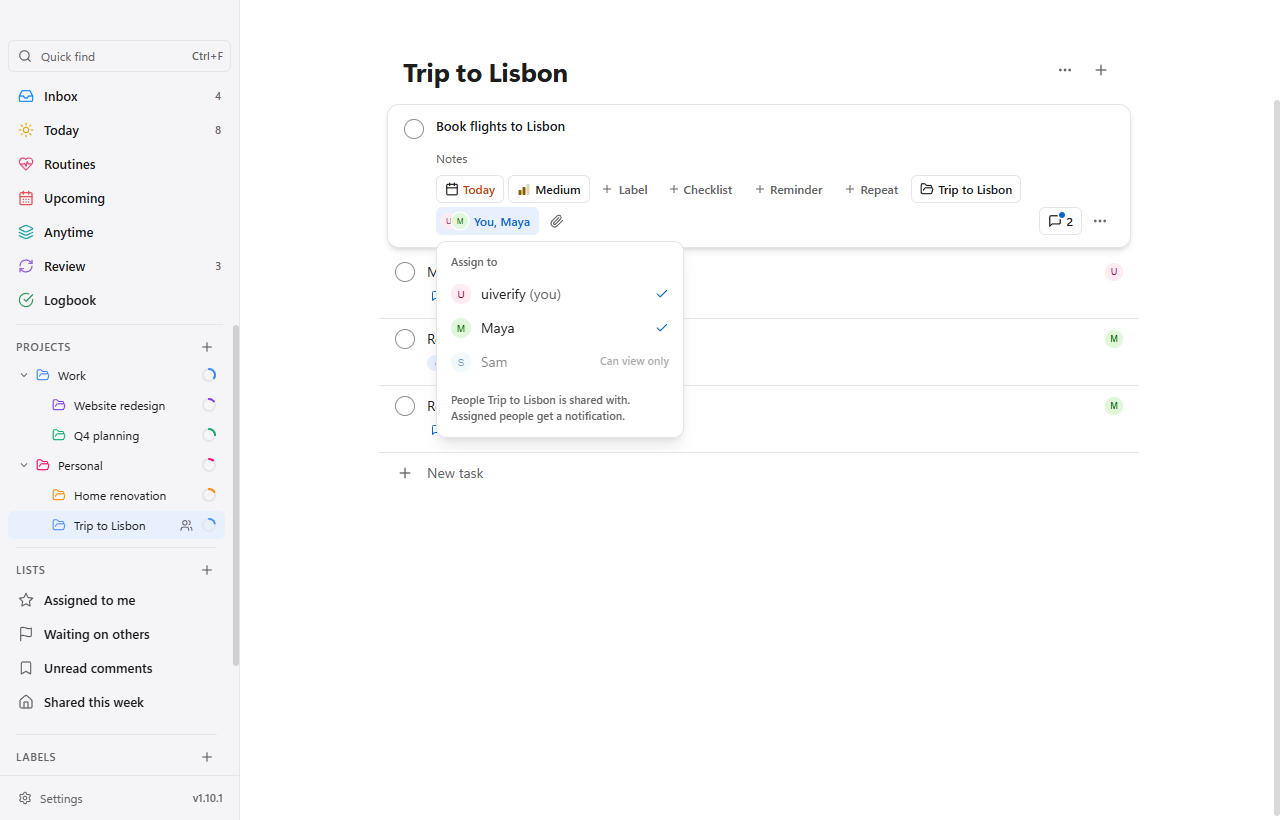
Assign tasks
- Rows in a shared project show who is assigned, you first.
- The open task has an Assign chip right after the project. Tick people to assign them; Vikunja notifies them. Someone who can only view the project is listed as Can view only and cannot be picked.
Comments
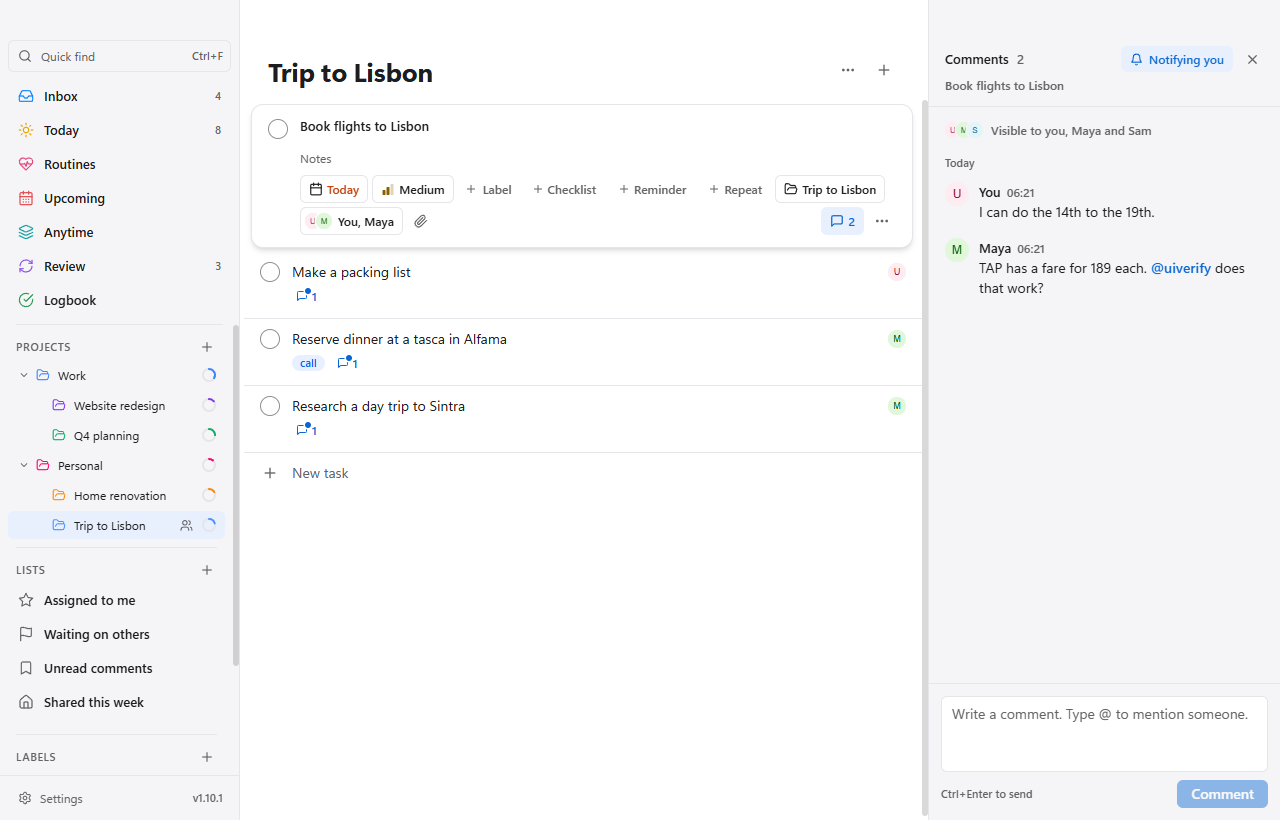
- A row shows how many comments a task has, with a dot when there is something you have not read. Click the count, the Comments button in the open task, or press Ctrl+Shift+C (Cmd+Shift+C on macOS) to open the comments beside the list.
- The pane says who can see the thread. Type @ to mention someone (they get a notification) and press Ctrl+Enter to post. You can edit and delete your own comments.
- Notify me follows the task, so you hear about new comments too.
- Opening the comments marks them read, on every device.
- People who can only view a project can read its comments but not write.
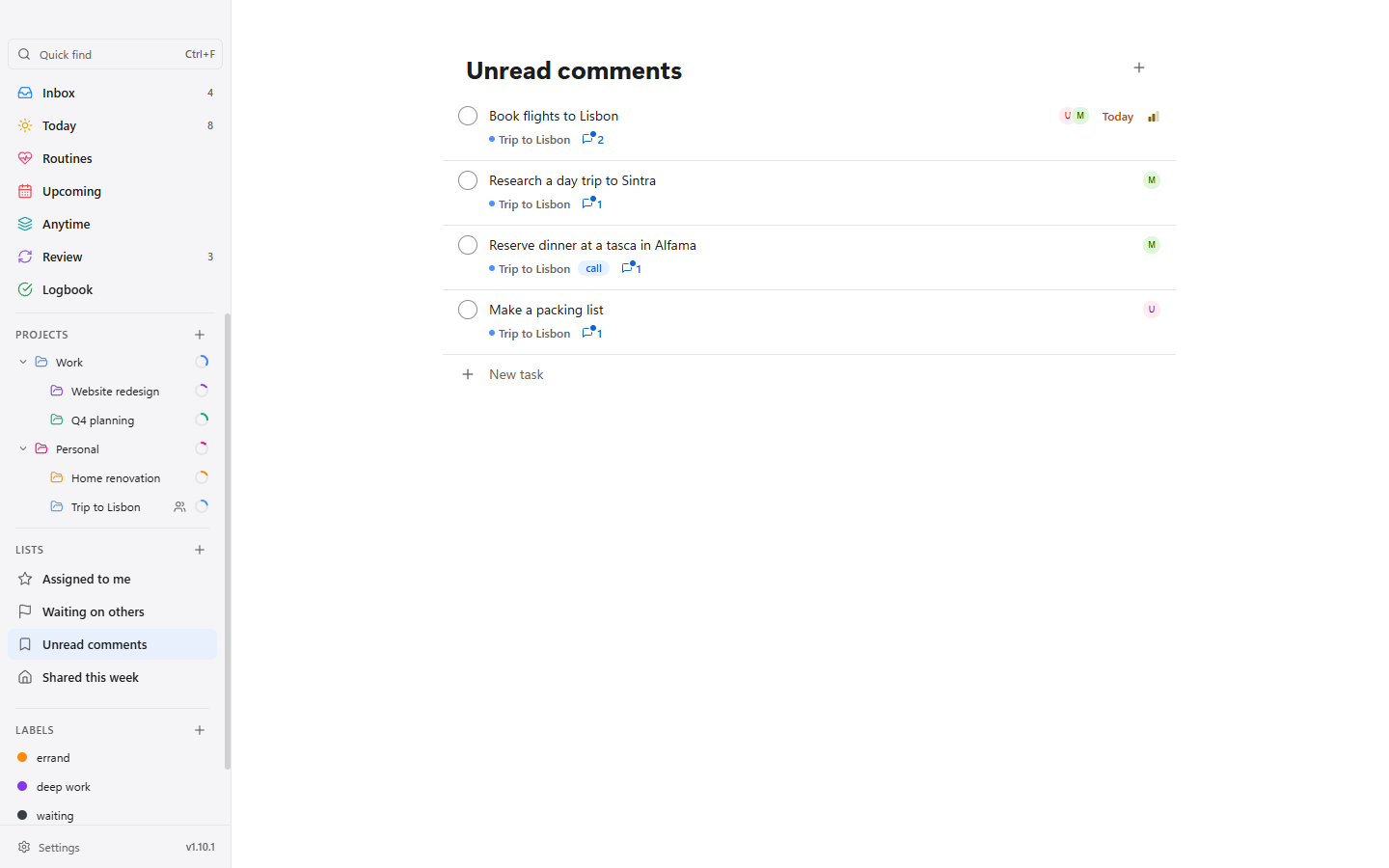
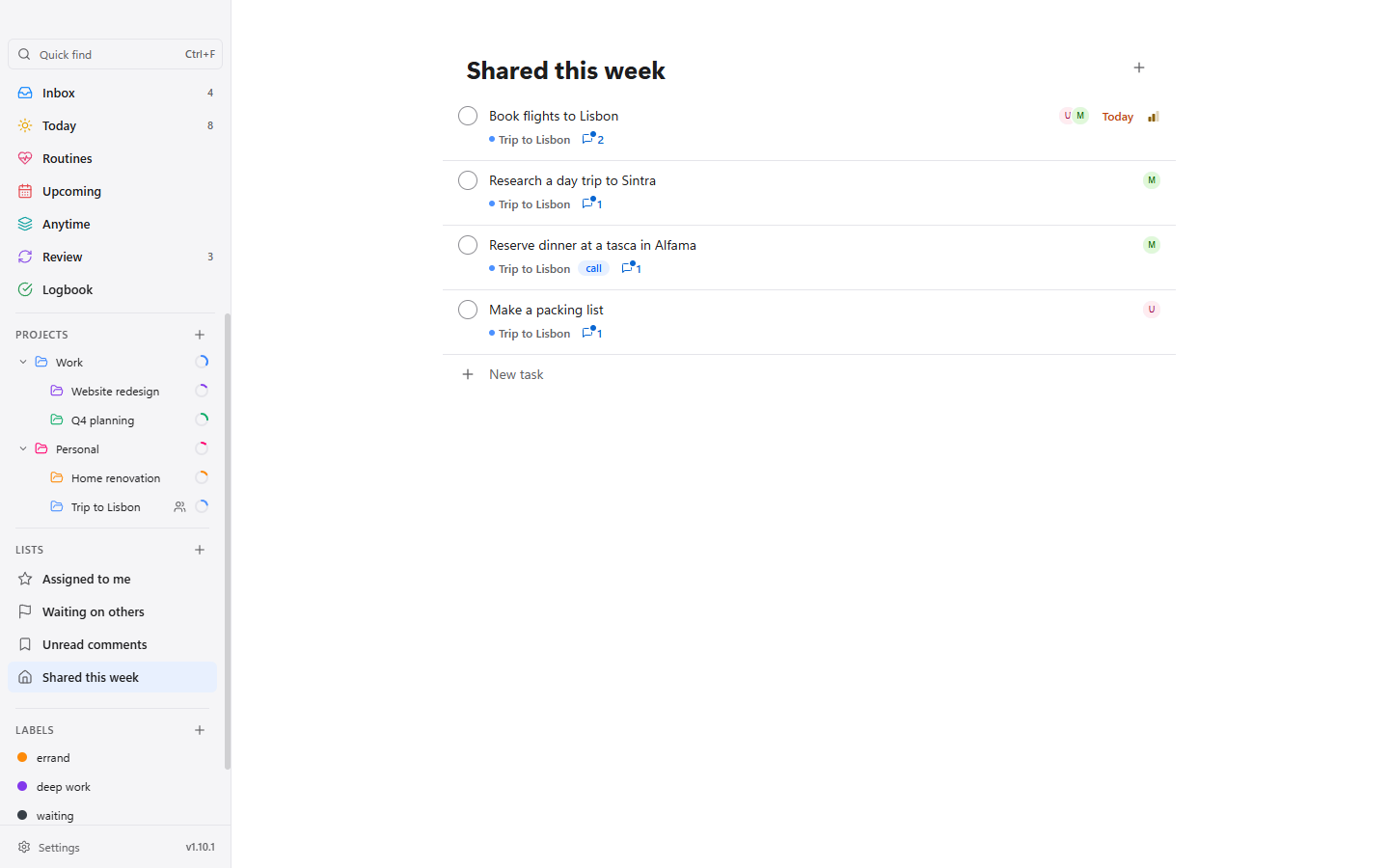
Custom lists for shared work
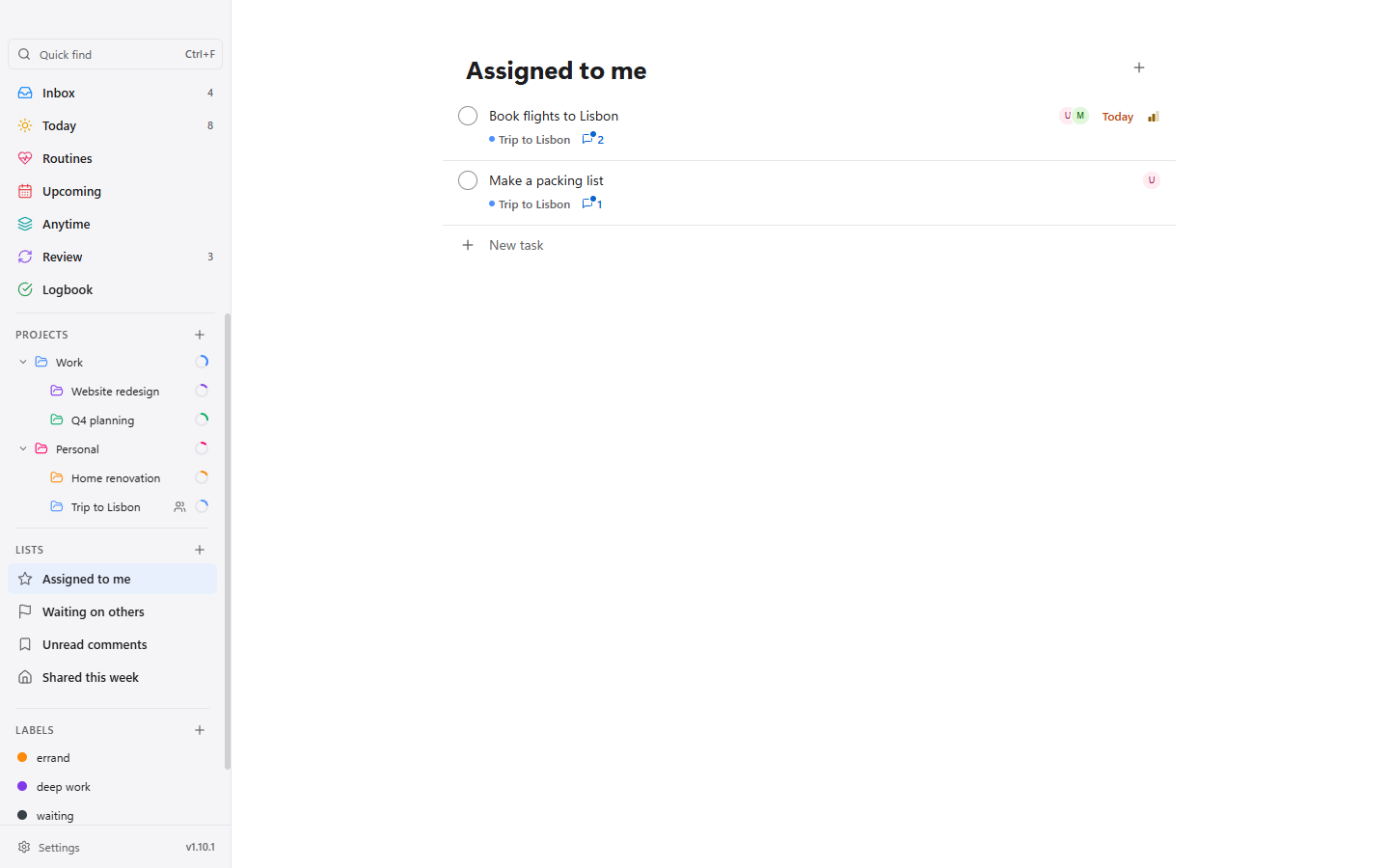
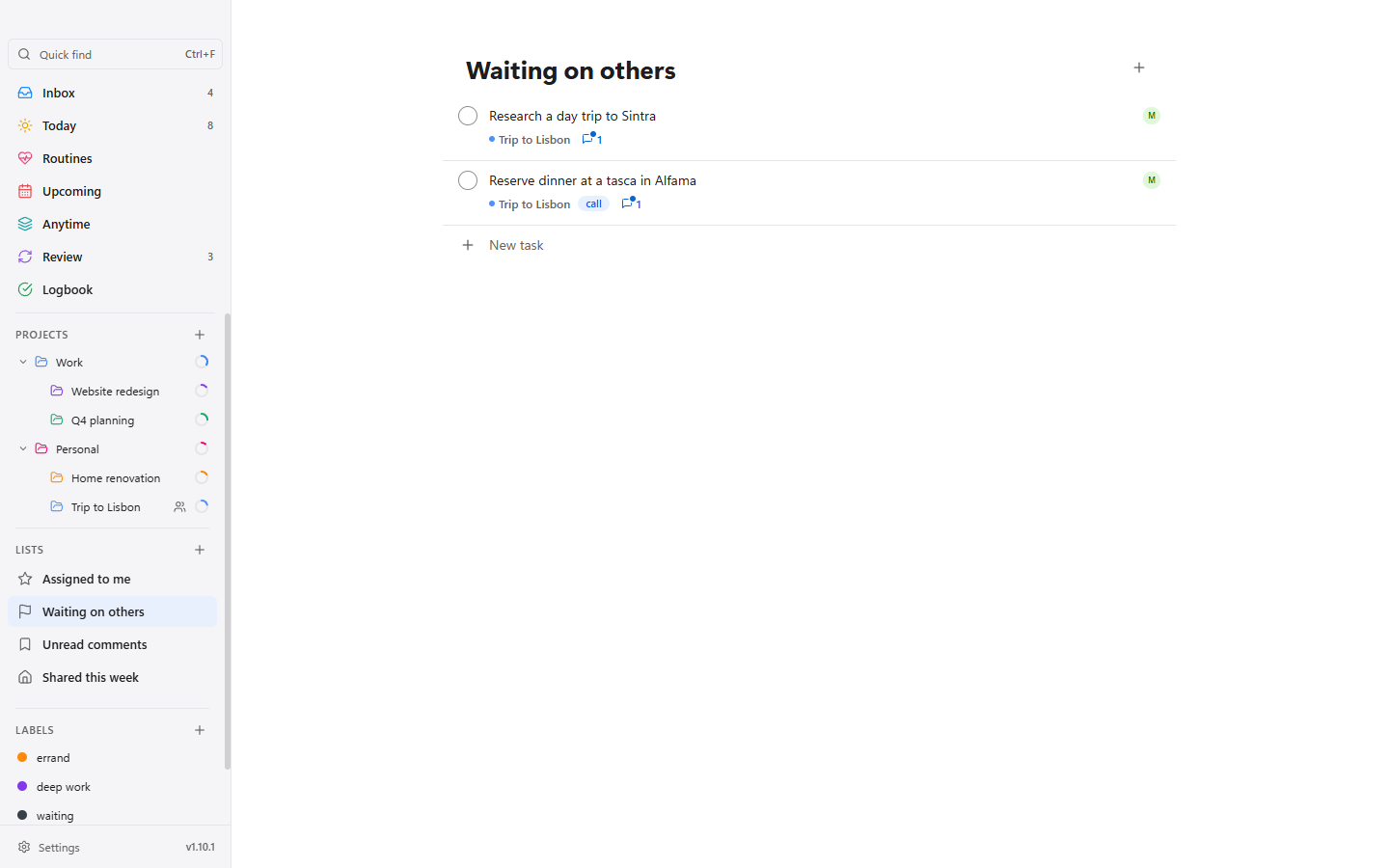
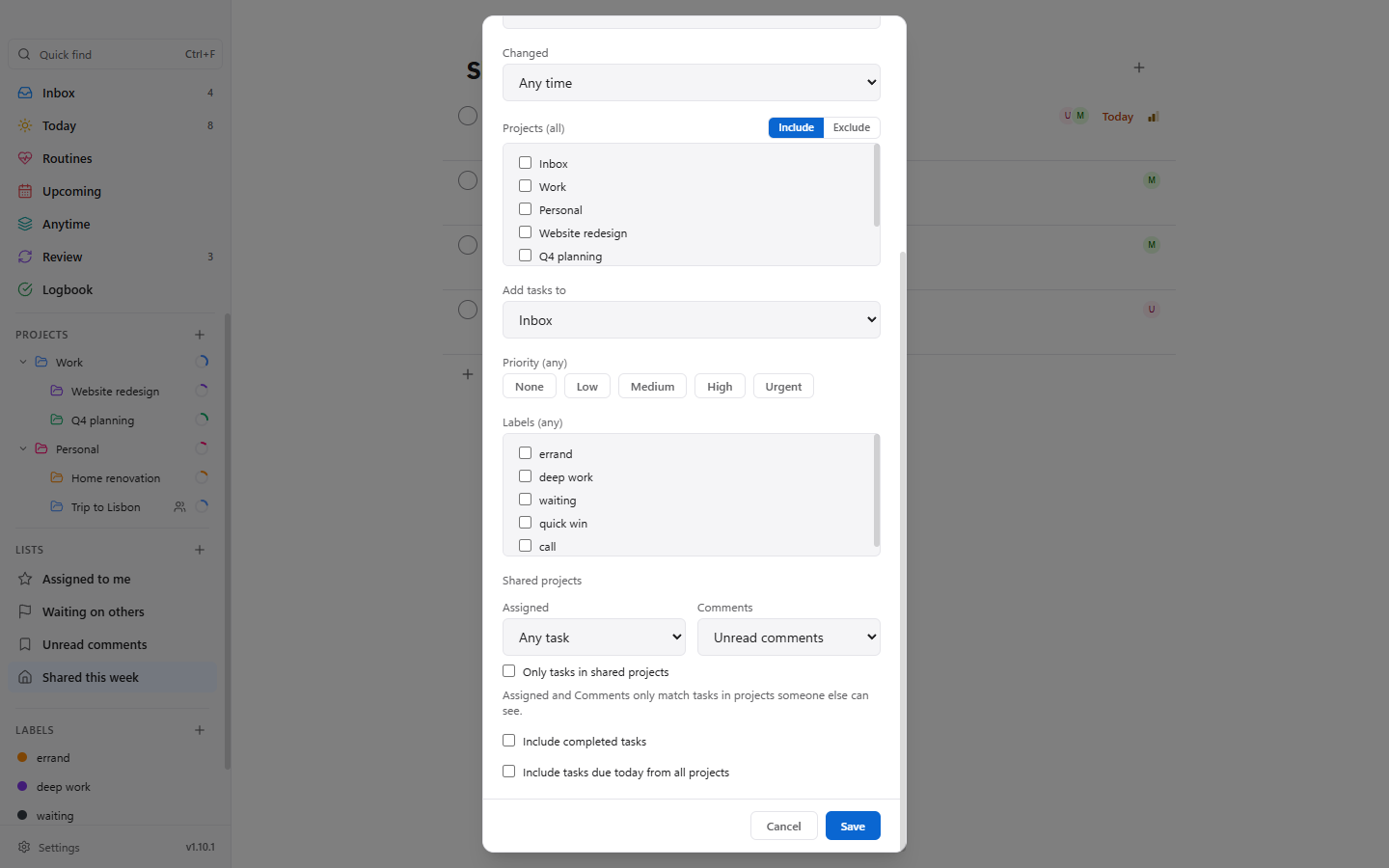
The list editor has new conditions:
- Assigned: to me, to someone else, or to nobody.
- Comments: unread comments, or has comments.
- Only tasks in shared projects.
- Changed: today, or in the last 3, 7 or 30 days.
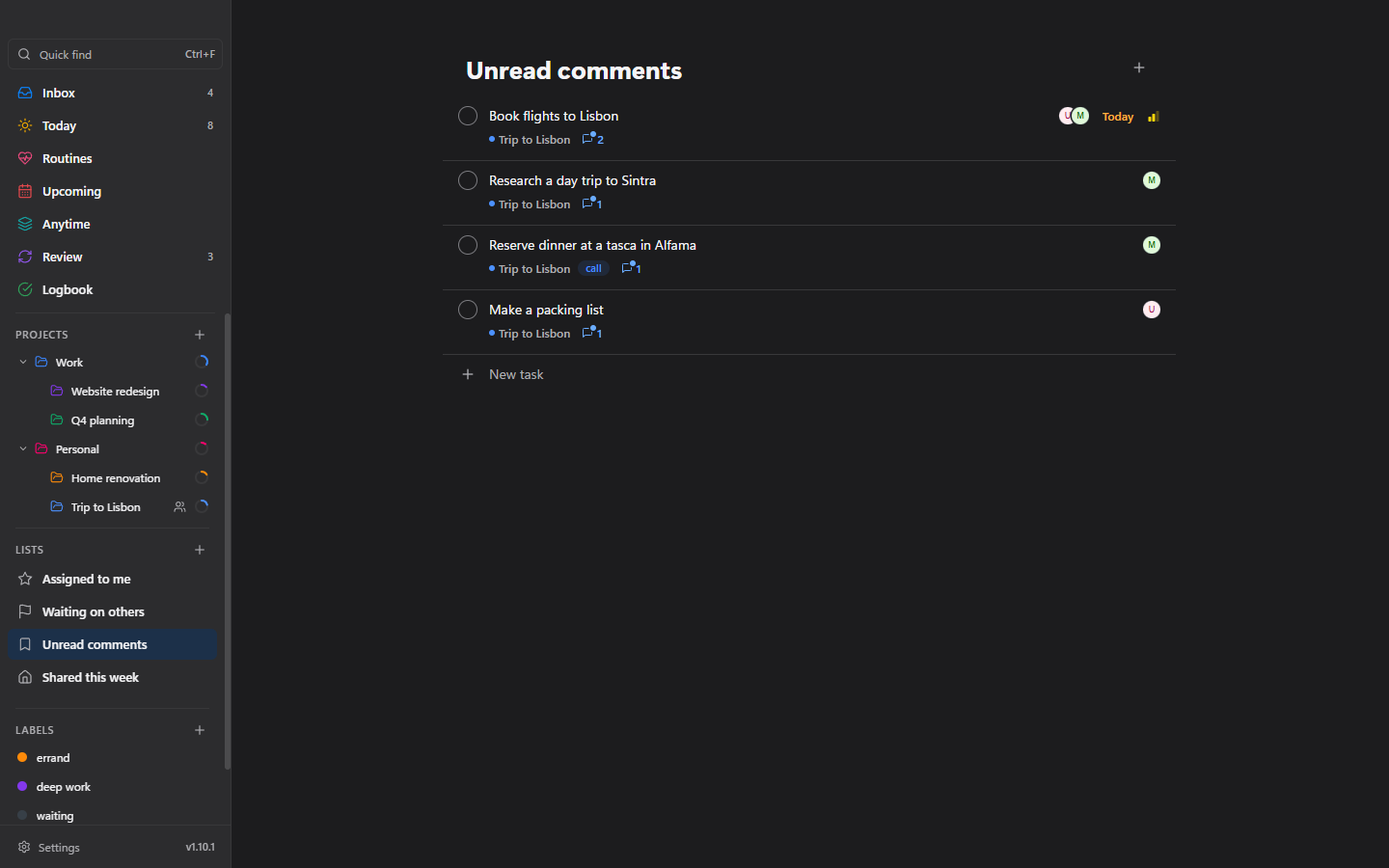
Assigned and Comments only match tasks in shared projects. Changed counts every change the server records (edits, completing, comments, assignees, labels), including your own, because Vikunja does not record who changed a task; reading comments does not count. A task you read in an Unread comments list keeps its place until you leave the list. The conditions work in Quick View as well, and the lists sync to Vicu Android with the same meaning.
Offline
- Assigning, unassigning and comments you write offline wait in the sync queue and are sent in order once you are back online. A comment that is still waiting says Waiting to sync.
Upgrade notes
- The people you share with need an account on the same Vikunja server. Collaboration was built and checked against Vikunja 2.4.0.
- Update both apps to 2.0.0. An older version keeps the new list conditions when it syncs a list, but ignores them and shows more tasks.
Vicu 1.10.1
Projects in the sidebar and in Settings
Vicu 1.10.1 ships together with Vicu Android 1.10.1. You can now manage projects right from the sidebar, and projects have their own tab in Settings.
This is a pre-release that builds on 1.10.0; if you are coming from 1.8, read the 1.9.0 and 1.10.0 notes too.
Manage projects from the sidebar
- Every project has one menu. Point at a project in the sidebar and click …, or right-click it; the same menu is in the project's page header and in Settings. It has Rename, Edit…, Add subproject, Move to…, Set as Inbox, Review (mark reviewed, review cadence, exclude from or include in review), Archive and Delete.
- Drag a project onto another to put it inside, or towards the top or bottom edge of a row to place it before or after. Drop it on the Projects header to make it a top-level project. Moving a project to another parent shows a message with Undo.
- With the keyboard: F2 renames the focused project, Shift+F10 opens its menu, and Alt+Shift with the arrow keys moves it up, down, into the project above or out one level.
- The + next to Projects adds a project right in the sidebar: type its name and press Enter. Renaming happens in place too.
- Archived projects are listed in a collapsed Archived group below your projects, with Restore. An archived project's page has a Restore project button.
- One dialog edits a project's name, parent and colour.
- Projects can no longer be put inside the Inbox. The sidebar does not show the Inbox, so they would disappear from the tree.
Settings
- A new Projects tab holds the Inbox choice, all your projects (click one to edit it, drag to rearrange, … for the rest), the archived projects, display options and project review.
- Project review lists the projects you excluded from review, each with Include again.
- New setting Show project progress in the sidebar (on by default, under Projects, Display): turn it off to hide the progress rings.
- General has a new Appearance section with the theme and the clock.
- Every Settings tab has the same width.
Fixes
- A completed task no longer jumps to the end of its group when a background refresh runs during the 5 second hold. It stays where it was until it collapses.
- Message text lines up with its icon and buttons, and the default review cadence field lines up with its label.
Upgrade notes
- The Inbox choice and project review moved from General to the new Projects tab. Your settings carry over.
- Update both apps to 1.10.1 to get the same project actions on both.
Vicu 1.10.0
One design with the phone app
Vicu 1.10.0 ships together with Vicu Android 1.10.0. The big change is a new look: both apps now share one design system, so colours, text, spacing, dates and motion match across desktop and Android. It also makes completing tasks calmer, picking dates faster, and syncing more reliable.
This is a pre-release that builds on 1.9.0; if you are coming from 1.8, read the 1.9.0 notes too.
A new look, shared with Android
- Vicu's own colours, with text that is easy to read in light and dark themes. Every label chip, date, button and mark is checked for readable contrast.
- One set of type sizes, spacing and corner radii in every window, including Quick Entry and Quick View.
- Each smart list has its own icon and colour in the sidebar.
- Task rows have a title line and a quieter line below with a project, labels and the date, and a bell and priority at the end. Sections have two levels of headers with counts, and a group of one gets no header.
- Priority is shown with bars (one to three for low, medium and high) and a filled square for urgent, with the name on hover and for screen readers. The same marks appear in rows, menus, Quick Entry and Quick View.
- Dates read the same way everywhere ("Today", "Tomorrow", weekdays, then dates) in your system's regional format. New Clock setting: System, 12-hour or 24-hour, for when your system uses a custom format.
- New task row at the end of each list. Add a section from the project menu or between sections.
- The Logbook is grouped by the day you completed tasks, with the time of day.
- Every view has the same page header, reading width and empty state, and lists show a header and placeholder rows while they load instead of "Loading...".
- The first-run setup starts with the logo and a welcome line, and shows every step in one card.
- Quick View rows have a round checkbox, the due date in words and the priority at the end, and follow the theme you chose in Settings.
Completing tasks
- A completed task stays in the list for 5 seconds, longer while you point at it or it has keyboard focus, so you can still change your mind or finish what you were doing. Then it collapses.
- A single "Completed" message with Undo appears. Complete several in a row and it reads "3 completed". It stays while the pointer is over it.
- Undo of a repeating task restores its dates, not only the open state.
- With the keyboard, Space completes the task and moves to the next checkbox. Undo puts focus back.
- The checkbox pops, a check is drawn and the title is struck through.
Picking a date: the When panel
One panel for every date and time:
- Type a date in your own words ("tomorrow 9am", "next friday") and watch the calendar follow.
- Quick choices, with the coming weekdays listed by name.
- A month calendar you can move through with the arrow keys, Home, End and Page Up and Down.
- Times, including a custom time that applies when you press Enter.
The panel opens inside the window and flips above its button when there is no room below.
Quick find and the command palette
- Quick find sits at the top of the sidebar. Press Ctrl+F (Command+F on a Mac) and matching tasks appear as you type.
- A command palette opens with Ctrl+Shift+P (Command+Shift+P on a Mac), for jumping to a list or running a command without the mouse.
- Ctrl+K still completes the selected task and Ctrl+P still prints.
Working with several tasks
- Select two or more tasks and a bar appears to schedule, complete, move, tag or delete them together.
- The task card shows the properties that are set as chips and the unset ones as quiet buttons.
- The context menu has one icon column, real shortcut hints, priority marks and a check by the current priority.
- Quick add suggests projects, labels and dates under the cursor as you type, and the chips above follow what you typed unless you set them yourself. This also works in Quick Entry.
Projects
- The sidebar shows Areas with projects below them, collapsible, and a progress ring for each project that shows how much of it is done.
- Counts in the sidebar stay current after changes from Quick Entry, Quick View and other devices.
Routines are optional
- Settings has a new Routines panel with two switches, both on by default.
- Enable routines turns the whole feature off: the sidebar entry, the Today section and routine reminders go away. Your routines and their history are kept, so switching it back on brings everything back.
- Show routines in Today controls the Today section on its own.
- Today lists only the routines still open for the day. Completed and skipped ones leave the list, the progress count still covers the whole day, and the section disappears when nothing is left. The Routines view still shows everything, so you can undo there.
Motion
- A task opens into its card and closes back into its row.
- Changing views fades the content in and slides the sidebar highlight to the new item. Switching with the keyboard stays instant.
- Lists move smoothly: rows open and close, other rows slide into place when you reorder or open a card, and a task you drag lifts and settles into its slot.
- Menus, popovers and tooltips grow from the button that opened them.
- Counts roll when they change. When you empty Today it says "All clear" and offers the next task.
- When your system asks for reduced motion, all of this becomes a plain fade.
Windows
- Native caption buttons, including Snap Layouts when you hover the maximise button.
- On Windows 11 22H2 and later the sidebar has the Mica material, so it picks up your wallpaper colour. Windows 10 keeps a solid sidebar.
- Text uses Segoe UI Variable.
- Contrast themes are supported: checkboxes, selection, focus, label chips and priority marks use your system colours, also in Quick Entry and Quick View.
Keyboard and screen readers
- One clear focus ring everywhere, and click and touch targets of at least 24 pixels.
- Menus, dialogs and pickers are real menus, dialogs and listboxes: arrow keys, typing to jump to an item, Escape to close, and focus returns to where you were.
- Task rows form a list with arrow-key navigation, and every checkbox, toggle and button in Settings has a name.
- Completions, deletions and toasts are announced politely, and each toast type has an icon and a name.
- Task info is a proper dialog, and sections of Notifications that are switched off cannot be tabbed into.
Sync that holds up
- Changes are sent to the server one at a time. Bulk actions on many tasks no longer lose changes on Vikunja servers that use SQLite ("database is locked").
- A stopped sync now retries after 5 seconds, then 15 seconds, then every minute, instead of waiting for the next change.
Fixes
- Review uses clearer states: "Not reviewed yet" is grey and "Due" is amber.
- A toast that is removed early no longer leaves a completed task stuck in the list.
- Deleting a task moves focus to a sensible place.
- Clearing the date of several tasks at once works.
- The reminder panel keeps keyboard focus while you set a reminder.
Under the hood
- Colours, type sizes, corner radii and motion come from one token file shared byte for byte with Vicu Android, and tests check every colour pair for readable contrast in light and dark.
- A Tailwind quirk that silently dropped tinted backgrounds (selection, hover and date chips) is fixed at the source, with a test that keeps it from coming back.
- A new UI verification harness drives the built app against a local Vikunja with real mouse and keyboard input, takes screenshots, runs accessibility checks and measures frame timing.
Upgrade notes
- Update both apps to 1.10.0 to get the same look and the same date wording on both.
- Android now uses Vicu colours by default. Android's Use device colours switch is still available in Settings.
- To see animations in Vicu on Windows, turn on Settings, Accessibility, Visual effects, Animation effects. When it is off, Vicu follows it and keeps the quiet fades.
Vicu 1.9.0
Same meaning on every device, no lost work
Vicu 1.9.0 ships together with Vicu Android 1.9.0. Both apps now read your synced data the same way, the desktop app can be used offline, and a long list of bugs is fixed.
This is a pre-release. It is followed shortly by 1.10.0, which builds on it.
The same data means the same thing on desktop and Android
- Custom lists use the same date windows on both apps, with a new Include overdue tasks option for the Today, This week, and This month windows (on by default, as before). Lists also sort the same way, and the editor now offers Completed and Position.
- A due date without a time is stored at the end of that day and shown without a time. A date with a time keeps its time. Older dates saved at midnight show as date-only.
- Today, Upcoming, and Overdue follow your local calendar day, also late in the evening and in time zones far from UTC. Lists move on at midnight by themselves.
- Project review status is calculated the same way on both.
- Quick-add parsing follows one shared set of rules:
!medand!critical, a leading or trailing!for today, phrases likefriday 3pmandevery Monday. A weekday right before another date stays in the title ("Call Ana about Saturday tomorrow at 3pm" is due tomorrow at 3 PM), and "weekend" and "weekday" are no longer read as dates. A range uses its first date ("Trip friday to sunday" is due Friday), and words about the past ("last friday", "yesterday", "2 days ago") or a date inside another word ("Monday's", "(tomorrow)") are no longer read as dates.
Your edits no longer overwrite other devices
Vicu now sends only the fields you changed, for tasks and projects. Editing a task on your PC no longer reverts something you changed on your phone a moment earlier.
Offline editing
- Keep working when the server is unreachable. Creating, editing, completing, and deleting tasks, labels, and pasted images in the main window are queued and sent in order when the connection is back. The last task lists are kept, so the app also starts offline.
- A sync panel in the sidebar shows pending and failed changes, with retry and discard. Changes made for one account are never sent to another.
- Quick Entry and Quick View use the same queue.
- Signing out first tries to send waiting changes and custom lists, and asks before signing out when something has not reached the server yet. Unsynced custom-list edits would be lost; queued task changes stay on the device for your next sign-in to the same account.
Fixes
- Saving a project review works again on current Vikunja servers.
- A label, project, or priority in the middle of a date no longer makes quick add drop the date: "Call tomorrow @home 3pm" is due tomorrow.
- Quick View loads its lists again instead of showing an error, and reads every page of a long list.
- Today, Anytime, and the other smart lists show every task, not only the first page.
- Accents, emoji, and other non-English characters no longer turn into garbled symbols in long responses.
- The date picker picks the right local day for Today, Tomorrow, and Next week in the evening and at night.
- Reordering in the Inbox and in the project list works when several items share a position.
- The app icon count leaves out tasks of archived projects.
- Logging in or out no longer resets your settings.
- Pasting several lines into a task list creates one task per line, and Quick Entry notes keep their paragraphs.
- Task reminders follow the notification switch and refresh every 15 minutes.
- The update check compares versions correctly and runs every 12 hours.
- Saving a change the server already has (the same title, a task that is already open) no longer shows an error, and such a change can no longer stop the offline queue.
- File > New Task opens the new-task composer.
- Opening a task from a reminder or from Quick View brings it up in the main window.
- Quick View refreshes after you change a task's labels, relations, attachments, or project in the main window.
- When creating a task times out, Vicu says the task may already have been created, so you can check before trying again.
- A date like "Oct 9 9am" that is today stays today after 9 AM instead of jumping to next year.
- Custom lists that two devices first synced at the same moment are merged into one, and Quick View no longer reloads its tasks every five minutes.
- The Obsidian link is written to a task only when you save it with the note linked.
- A settings file saved with a byte order mark (for example by Notepad) is read instead of being reset.
- Windows notifications show as Vicu and bring Vicu up when you click them.
Routine history archive
A routine keeps its last 400 days of history. Older history moves to hidden archive tasks on your Vikunja server (titled "Vicu routine archive", marked done) and stays available in the history view and the CSV export. You may see these tasks in other Vikunja apps; leave them in place.
Faster
- Today, Upcoming, Tag, and Logbook fetch only what they show, and the Logbook loads older tasks on request.
- Routines and custom lists no longer scan every completed task.
- Quick Entry and Quick View make fewer requests, and the first screen loads a smaller bundle.
- New tasks no longer wait for their position before you can add the next one.
Security
- Only Vicu's own pages can load in its windows; links open in your browser.
- Attachments from the server are opened safely: programs and scripts are shown in the file manager instead of run, and downloads are size-limited.
- OpenID Connect sign-in checks the state of the redirect, and Settings tells you when saved credentials are not encrypted on this system.
- Upload file names are escaped and the server's file size limit is checked before sending.
- Logging out revokes the backup API token Vicu created for this computer.
Linux, startup, and browser link
- Launch on startup now works on Linux (an autostart entry for the AppImage).
- New Start hidden option opens Vicu in the tray without the main window.
- The browser link no longer needs Node.js: the bridge runs on Vicu's own runtime.
Under the hood
- Electron 44.5.1.
- The installer packages its resources once instead of twice.
VICU_USER_DATA_DIRruns Vicu with a separate profile folder, handy for testing without touching your own settings.
Upgrade notes
- Update both apps to 1.9.0.
- Until both apps are updated, an older version may briefly show different custom-list results and can bring back archived routine history entries, which the new version removes again.
- The Windows startup entry is migrated to the new name automatically; there is nothing to do.
Vicu 1.8.1
Smoother task editing
This preview makes task editing smoother and updates the desktop foundation.
What's new
- Add, edit, and open links directly in task notes, including email links.
- See the correct completion state for subtasks in the expanded task view.
- Run on Electron 44, with compatibility fixes for startup, shortcuts, and packaging across desktop platforms.
This is a prerelease.
Releases before 1.8.1 are on GitHub.
Found a rough edge? Open an issue. This page is made from docs/releases.